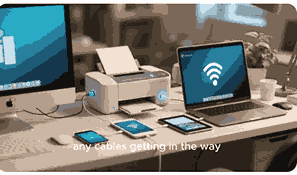
Connecting a printer to Bluetooth can significantly simplify your printing experience by allowing wireless printing from multiple devices such as laptops, smartphones, and tablets. With Bluetooth connectivity, you no longer need to rely on cables or network configurations, making it ideal for home offices, small businesses, and personal use. Modern printers are equipped with Bluetooth technology, enabling seamless pairing and quick data transfer. However, connecting a printer to Bluetooth may seem challenging for those unfamiliar with wireless setups. This guide provides step-by-step instructions, practical tips, and solutions to common Bluetooth printing issues, ensuring that your devices communicate effortlessly for a smooth printing workflow.
What Is A Printer?
A printer is an output device that converts digital documents or images into physical copies on paper. Printers vary in types, including inkjet, laser, thermal, and 3D printers, each designed for specific printing needs. They are essential tools in homes, offices, and businesses for creating reports, photos, labels, or specialized outputs. Modern printers often include wireless options such as Wi-Fi and Bluetooth, enhancing flexibility and convenience. Bluetooth-enabled printers allow users to print directly from mobile devices without using a traditional network connection, supporting a seamless workflow. Printers also offer features like duplex printing, high-resolution output, and compatibility with multiple operating systems and software applications.
How To Enable Bluetooth On Your Printer
Before connecting your printer, ensure that Bluetooth is enabled. Most modern printers include a Bluetooth setup option in the settings menu. Access the printer’s control panel or touchscreen display, locate the Bluetooth settings, and toggle it on. Some printers require you to set a visibility mode to make the device discoverable by your computer or smartphone. Additionally, check the printer’s manual for specific pairing instructions. Ensuring the printer has the latest firmware can improve connectivity and performance. Properly enabling Bluetooth is the first step to establishing a reliable wireless connection, reducing the risk of pairing errors or connectivity issues that can delay your printing tasks.
Preparing Your Device For Bluetooth Connection
To successfully connect a printer via Bluetooth, your device must support Bluetooth and have it enabled. On Windows, Mac, Android, or iOS devices, navigate to the Bluetooth settings menu and make your device discoverable. Updating your device’s drivers or operating system ensures compatibility with modern printers. For smartphones and tablets, ensure Bluetooth permissions are granted for printing applications. Maintaining a short distance between your device and the printer enhances the stability of the connection. Preparing your device correctly is crucial, as an incompatible or improperly configured device may prevent pairing or result in interrupted printing, even when the printer is fully functional and ready to pair.
Pairing Your Printer With A Computer Or Mobile Device
Once Bluetooth is enabled on both the printer and your device, you can initiate the pairing process. On your computer or mobile device, search for available Bluetooth devices and select your printer from the list. Some printers require a PIN or passkey for authentication, often provided in the manual or displayed on the printer screen. Confirm the pairing on both devices to establish a secure connection. Once paired, your device may automatically recognize the printer for future printing tasks. Successful pairing is essential for seamless printing, allowing you to send documents or photos directly to the printer without cables, ensuring convenience and efficiency in both home and professional environments.
Installing Printer Drivers And Software
For optimal performance, install the printer’s official drivers and software on your device. Drivers act as a bridge between your device and the printer, ensuring proper communication and access to advanced printing features. Most manufacturers provide downloadable drivers on their websites or include a CD with the printer. Installing the correct driver ensures compatibility with your operating system, supports Bluetooth functionality, and enables features like duplex printing, print quality adjustments, and device monitoring. Regularly updating the driver maintains performance and resolves potential bugs. Without the proper software, your device may detect the printer but fail to execute print jobs accurately, highlighting the importance of this step.
Troubleshooting Common Bluetooth Printing Issues
Even after proper setup, Bluetooth printing may encounter issues such as failed connections, unresponsive printers, or intermittent printing. Common causes include outdated drivers, interference from other wireless devices, incorrect device pairing, or low printer battery (for portable models). Resolving these issues may involve restarting both devices, updating drivers, resetting the printer’s Bluetooth settings, or ensuring both devices are within optimal range. For persistent issues, consult the printer’s manual or the manufacturer’s support website. Understanding common problems and their solutions ensures a smoother printing experience, reduces downtime, and helps maintain consistent performance across all your Bluetooth-enabled devices.
Optimizing Bluetooth Printer Performance
To maximize your Bluetooth printer’s performance, maintain firmware updates, avoid physical obstructions between devices, and reduce interference from other wireless devices. Use high-quality consumables such as ink or toner to prevent print errors, and schedule regular maintenance as recommended by the manufacturer. Configuring your printing preferences, such as resolution, paper type, and print quality, ensures consistent results. Optimizing settings on both your device and the printer enhances speed, reliability, and output quality. Consistent maintenance and performance optimization not only extend the printer’s lifespan but also provide a seamless printing experience, especially in environments where multiple devices rely on Bluetooth connectivity for daily tasks.
Security Considerations For Bluetooth Printing
Bluetooth connections can be vulnerable to unauthorized access if not properly secured. Ensure that your printer requires authentication during pairing, and avoid leaving the printer in discoverable mode when not in use. Use strong, unique PINs or passwords if the printer supports them. Monitor connected devices regularly to detect unauthorized access, and keep firmware up to date to patch security vulnerabilities. Following security best practices protects sensitive information, prevents misuse, and maintains the integrity of your printing environment. Awareness of potential risks ensures that Bluetooth printing remains a convenient and secure option for both personal and professional use.
Conclusion
Connecting a printer to Bluetooth offers convenience, mobility, and efficiency for users across various devices. By following proper setup steps, installing the necessary drivers, troubleshooting common issues, and maintaining security, you can enjoy seamless wireless printing. Whether you are printing from a computer, smartphone, or tablet, Bluetooth-enabled printers simplify the printing process, reduce clutter, and enhance productivity. Regular optimization and attention to security ensure consistent performance, making Bluetooth printing an indispensable tool in modern workflows. With these guidelines, you can confidently set up and maintain a reliable Bluetooth printing environment.
Frequently Asked Questions
1. How Do I Connect A Printer To Bluetooth?
Connecting a printer to Bluetooth involves enabling Bluetooth on both the printer and your device, making the printer discoverable, and pairing it with your computer or mobile device. First, ensure your printer supports Bluetooth and turn on the Bluetooth feature through its settings. Next, access your device’s Bluetooth menu and search for available devices. Select your printer from the list, enter the PIN if required, and confirm the pairing. After successful pairing, install the necessary drivers or printing software to ensure full functionality. This allows you to print documents, photos, and other materials wirelessly, without using cables or network connections, providing flexibility and convenience in your home or office environment.
2. What Devices Are Compatible With Bluetooth Printers?
Bluetooth printers are compatible with a variety of devices, including Windows and Mac computers, Android and iOS smartphones, tablets, and certain smart home devices. Compatibility depends on the printer model and the device’s operating system version. Most modern devices with Bluetooth 4.0 or higher can connect without issues. Mobile devices often require manufacturer-specific printing apps, while computers may need official drivers installed. Checking the printer’s specifications and supported platforms ensures that your device will work seamlessly. Using compatible devices prevents connectivity issues, allows full access to printing features, and ensures smooth operation when printing documents, images, labels, or other media from multiple sources.
3. How Do I Enable Bluetooth On My Printer?
Enabling Bluetooth on a printer typically involves accessing the printer’s control panel or touchscreen display. Locate the settings menu and select Bluetooth or Wireless Options. Toggle the Bluetooth feature on, and, if necessary, set the printer to discoverable mode to allow devices to detect it. Some models may require a PIN for initial pairing. Refer to the printer’s user manual for specific instructions, as procedures can vary depending on the brand and model. Ensuring Bluetooth is enabled correctly is essential for successful device pairing, allowing wireless printing from computers, smartphones, and tablets without connectivity interruptions or errors during the printing process.
4. Do I Need Special Drivers For Bluetooth Printing?
Yes, installing the correct printer drivers is crucial for Bluetooth printing. Drivers act as the bridge between your device and the printer, enabling communication and access to advanced features such as print quality settings, duplex printing, and device monitoring. Most manufacturers provide drivers on their official websites, while some include them on installation CDs. Using outdated or incorrect drivers can result in failed print jobs or limited functionality. Regularly updating drivers ensures compatibility with new operating systems, improves performance, and resolves potential bugs. Proper driver installation guarantees smooth, reliable printing from computers, smartphones, or tablets connected via Bluetooth.
5. How Far Can I Be From My Printer For Bluetooth Printing?
Bluetooth connectivity typically works within a range of 30 feet (10 meters), though this can vary depending on device strength, obstacles, and interference from other wireless signals. Maintaining line-of-sight or minimizing walls and electronic interference enhances connection stability. Portable or compact printers may have shorter effective ranges, while some advanced models provide extended connectivity options. Staying within the recommended distance ensures consistent printing performance, prevents dropped connections, and reduces errors or delays during wireless printing tasks. For larger spaces, consider positioning the printer centrally or upgrading to devices with stronger Bluetooth capabilities to maintain reliable communication between devices and the printer.
6. Can I Connect Multiple Devices To One Bluetooth Printer?
Yes, many Bluetooth printers support connections from multiple devices, allowing users to print from computers, smartphones, and tablets interchangeably. However, simultaneous printing requests may be queued or managed sequentially, depending on the printer’s capabilities. Some models offer device management features that allow prioritization or limit connections to authorized devices. It is essential to pair each device individually and install the necessary drivers or printing apps. Connecting multiple devices enhances flexibility and convenience, making it easier for households or small offices to share a single printer without relying on wired connections or network printing, while maintaining seamless performance and accessibility for all users.
7. Why Is My Device Not Detecting The Printer?
If your device fails to detect the printer, common causes include Bluetooth being disabled on either device, the printer not in discoverable mode, outdated drivers, or distance and interference issues. Restarting both the printer and your device often resolves temporary glitches. Ensure that the printer’s firmware is updated and that your device’s operating system supports the printer model. Interference from other wireless devices or physical obstacles may also affect detection. Following proper troubleshooting steps, such as checking settings, updating drivers, and verifying compatibility, ensures successful device detection and seamless pairing for reliable Bluetooth printing without interruptions or errors.
8. How Do I Update My Printer’s Bluetooth Firmware?
Updating your printer’s Bluetooth firmware typically involves downloading the latest firmware from the manufacturer’s official website and following their installation instructions. Some printers offer over-the-air updates via Bluetooth or Wi-Fi, while others require connecting to a computer using a USB cable. Firmware updates improve connectivity, fix bugs, enhance performance, and add compatibility with new devices and operating systems. Always follow the manufacturer’s guidelines carefully to prevent errors during the update process. Regular firmware updates ensure that your Bluetooth printer maintains reliable performance, reduces connectivity issues, and provides the best possible printing experience across all compatible devices.
9. Can I Print From My Smartphone Using Bluetooth?
Yes, printing from smartphones via Bluetooth is supported by many modern printers. Ensure that Bluetooth is enabled on both the printer and your smartphone, and that the printer is discoverable. Install the manufacturer’s mobile printing app if required, and pair your smartphone with the printer. Once paired, you can select the print option in documents, photos, emails, or supported applications. Printing from a smartphone offers convenience and mobility, allowing users to produce physical copies without connecting to a computer or network. This feature is particularly useful for remote work, quick document sharing, or printing on-the-go in homes, offices, or other professional environments.
10. How Do I Pair My Printer With A Computer?
Pairing a printer with a computer involves enabling Bluetooth on both devices, making the printer discoverable, and initiating the pairing process through the computer’s Bluetooth settings. Select the printer from the list of available devices and enter any required PIN or passkey. Once paired, install the printer’s official drivers or software to ensure full functionality. Proper pairing allows the computer to communicate effectively with the printer for sending print jobs and accessing advanced features. Ensuring that both devices are within range, using updated drivers, and following manufacturer instructions provides a reliable connection, enabling efficient and seamless Bluetooth printing from your computer.
11. What Should I Do If My Printer Keeps Disconnecting?
Frequent disconnections may result from distance, interference, outdated drivers, or low battery in portable printers. Ensure the printer is within the recommended Bluetooth range and minimize obstacles or other wireless devices nearby. Updating drivers and firmware can resolve compatibility issues. Restarting both the printer and your device often restores a stable connection. Some printers allow you to reset Bluetooth settings and re-pair devices to fix persistent disconnection problems. Proper troubleshooting ensures consistent printing performance, prevents job interruptions, and maintains productivity, especially in environments where multiple devices rely on Bluetooth connectivity for regular printing tasks.
12. Is Bluetooth Printing Faster Than Wi-Fi Printing?
Bluetooth printing generally offers convenience over Wi-Fi but may be slower for large files due to limited bandwidth. Wi-Fi supports faster data transfer over longer distances, while Bluetooth is ideal for short-range, quick print jobs. The speed difference depends on file size, device capabilities, and interference. For mobile printing and occasional document output, Bluetooth is sufficient and practical. For large-scale or high-volume printing, Wi-Fi may be preferable. Understanding these differences helps users choose the best wireless printing method for their needs, balancing speed, convenience, and reliability based on file size, distance, and printing frequency.
13. How Do I Reset My Printer’s Bluetooth Settings?
Resetting Bluetooth settings often involves accessing the printer’s menu, selecting Bluetooth or network options, and choosing “Reset” or “Clear Paired Devices.” This removes previous pairings and allows fresh connections. Resetting is useful when devices fail to pair, connections are unstable, or you are troubleshooting issues. After resetting, enable Bluetooth, make the printer discoverable, and re-pair devices with updated drivers. Following manufacturer instructions ensures a safe reset process without affecting other printer functions. Regularly managing paired devices and resetting Bluetooth settings when necessary helps maintain a reliable and efficient wireless printing environment.
14. Can I Print Without Installing Drivers?
Some modern printers support driverless printing using Bluetooth-enabled mobile devices with compatible apps. However, for full functionality, installing drivers is recommended, especially on computers. Drivers provide access to advanced features, ensure compatibility, and prevent errors during printing. Without drivers, you may experience limited print options, reduced print quality, or failed jobs. Using official drivers or apps ensures smooth communication between devices and the printer, enhances performance, and enables the complete range of features, including duplex printing, resolution settings, and device monitoring, resulting in a better overall printing experience.
15. How Do I Check If My Printer Supports Bluetooth?
Check your printer’s specifications in the user manual or on the manufacturer’s website to confirm Bluetooth support. Look for mentions of Bluetooth version, wireless printing, or mobile printing compatibility. Modern printers usually indicate Bluetooth availability on packaging, control panels, or technical documents. Ensuring Bluetooth compatibility is essential before attempting to pair devices, as non-Bluetooth printers require alternative connectivity methods such as USB or Wi-Fi. Verifying support prevents compatibility issues, saves time, and allows you to set up wireless printing efficiently, taking full advantage of Bluetooth-enabled convenience for computers, smartphones, and tablets.
16. Why Is My Bluetooth Printer Printing Slowly?
Slow printing via Bluetooth can result from large file sizes, interference, outdated drivers, or distance from the printer. Bluetooth has lower bandwidth compared to Wi-Fi, affecting data transfer speed for complex documents or high-resolution images. Ensure devices are within optimal range, minimize obstacles, and update drivers or firmware. Reducing file size or using lower-resolution settings can also improve printing speed. Regular maintenance, including clearing print queues and checking printer health, contributes to faster performance. Understanding these factors helps optimize Bluetooth printing for efficiency, preventing delays and ensuring consistent output quality for both home and professional use.
17. Are Bluetooth Printers Compatible With All Operating Systems?
Bluetooth printers are generally compatible with major operating systems such as Windows, macOS, Android, and iOS. However, compatibility may vary depending on the printer model and driver support. Always check manufacturer specifications and install the correct drivers or mobile printing apps. Some printers may offer limited functionality on specific operating systems or older versions. Verifying compatibility ensures successful pairing, reliable performance, and access to advanced features, preventing issues during printing tasks. Maintaining up-to-date operating systems and drivers enhances interoperability, allowing users to maximize the convenience and flexibility of Bluetooth-enabled printing across multiple devices.
18. Can I Print Multiple Copies Using Bluetooth?
Yes, you can print multiple copies via Bluetooth, just like with wired or Wi-Fi printing. Ensure that your printer supports the desired number of copies, and configure the print settings in your device or printing app. Some mobile apps may have limitations on batch printing, while computer drivers usually allow multiple copies per job. Verify that the printer has sufficient paper and ink or toner to complete the job. Printing multiple copies via Bluetooth may be slightly slower for large volumes due to limited bandwidth, but it remains a convenient option for producing duplicate documents or materials quickly without needing physical connections or network setup.
19. How Do I Troubleshoot Printing Errors On Bluetooth Printers?
Troubleshooting Bluetooth printing errors involves checking device and printer settings, verifying proper pairing, updating drivers, and ensuring the printer is within range. Common errors include failed print jobs, partial prints, or connection drops. Restarting both devices often resolves temporary issues, while resetting Bluetooth settings can fix persistent problems. Interference from other wireless devices should be minimized, and firmware updates should be applied as needed. Reviewing printer manuals or support resources helps address specific error codes. Proper troubleshooting ensures smooth printing performance, prevents downtime, and maintains a reliable workflow, allowing users to enjoy uninterrupted wireless printing with minimal frustration.
20. How Can I Improve Bluetooth Printing Reliability?
Improving Bluetooth printing reliability involves maintaining close proximity between devices, updating drivers and firmware, reducing interference, and performing regular printer maintenance. Ensure proper pairing, remove unused paired devices, and use official printing apps or software for optimal performance. Avoid obstacles or crowded wireless environments that may disrupt signals. Monitoring printer health, replacing consumables when needed, and following manufacturer-recommended settings further enhance reliability. By following these best practices, users can achieve consistent, stable printing performance with Bluetooth, making it an efficient and dependable solution for home, office, or professional printing tasks without the need for cables or network connections.
FURTHER READING
- How To Install A Printer Driver | A Step-By-Step Guide For Windows, Mac, And Network Printers
- How To Fix Printer Connectivity Issues | Troubleshooting Printer Connection Problems For Seamless Printing
- What Is A Printer Driver? | Understanding Printer Software, Installation, And Compatibility
- How To Print To A Cloud Printer | A Step-By-Step Guide To Cloud Printing From Any Device
- Why Is My Printer Not Detected? | Troubleshooting Printer Connection Issues For Windows, Mac, And Network Printers
- How To Set A Default Printer | A Step-By-Step Guide To Easily Configure Your Printer On Any Device
- How To Connect Your Printer To A Router | A Step-By-Step Guide To Wireless And Wired Printer Setup
- How To Cancel A Printer Job | A Complete Guide To Stopping Printing Tasks On Windows, Mac, And Network Printers
- What Is A Printer Queue? | Understanding Printer Queue Management And Troubleshooting Tips
- How To Add A Printer Using An IP Address | A Step-By-Step Guide To Connect Network Printers Efficiently