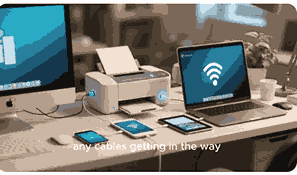
Printers are essential devices in both home and office environments, but nothing is more frustrating than encountering printer error codes that stop your workflow. Understanding what printer error codes mean and how to fix them is crucial for maintaining productivity and avoiding unnecessary downtime. This comprehensive guide explains the causes of printer error codes, how to troubleshoot them effectively, and the best methods to prevent future printing issues. By following these steps, you can handle most printer errors without expensive repairs or delays.
What Is A Printer?
A printer is an output device that connects to a computer, laptop, or mobile device to produce hard copies of documents, images, and other files. Printers can be wired or wireless, and they operate using different technologies such as inkjet, laser, or thermal printing. Modern printers often come with multifunctional features like scanning, copying, and faxing, making them versatile for business and personal use. While printers are generally reliable, they can generate error codes when issues such as paper jams, low ink levels, connectivity failures, or hardware malfunctions occur. These codes are designed to help users identify problems quickly and apply the right solution.
Common Causes Of Printer Error Codes
Printer error codes usually occur due to hardware malfunctions, software conflicts, or connectivity issues. Common causes include paper jams, misaligned cartridges, outdated drivers, or low ink and toner levels. Wireless printers may display error codes if there is a weak Wi-Fi connection or incompatible network settings. Power supply fluctuations and mechanical wear can also trigger errors. Identifying the root cause of the error code is the first step in solving the problem.
How To Troubleshoot Printer Error Codes
When a printer displays an error code, the first step is to consult the user manual or manufacturer’s website to understand the meaning of the code. Restarting the printer can often resolve temporary glitches. Check for paper jams, ensure cartridges are installed properly, and verify that the printer has sufficient ink or toner. Updating printer drivers and firmware is essential, as outdated software may trigger recurring error codes. For network printers, troubleshooting Wi-Fi connections, checking IP addresses, and restarting routers can help. If the error persists, advanced diagnostics or professional repair may be necessary.
Fixing Paper Jam Error Codes
Paper jams are one of the most common reasons printers display error codes. To fix this issue, turn off the printer and carefully remove any jammed paper without tearing it. Open all accessible panels and check the paper tray, rollers, and feeder paths. Make sure the paper is loaded correctly and is not wrinkled or damp, as this can cause recurring jams. After clearing the jam, restart the printer and check if the error code disappears. Regularly cleaning the rollers and using high-quality paper can help prevent paper jam errors in the future.
Fixing Cartridge And Toner Error Codes
Cartridge and toner errors usually occur when the printer cannot detect the cartridge or when the toner is low. To resolve these codes, remove the cartridge, check for protective seals, and reinstall it firmly. If the problem persists, clean the cartridge contacts and the corresponding slot inside the printer. Using genuine cartridges recommended by the manufacturer helps avoid compatibility issues. For toner-related errors, gently shake the cartridge to redistribute toner before reinserting it. If the cartridge is damaged or empty, replacing it with a new one is often the only solution.
Fixing Connectivity Error Codes
Connectivity issues are common with wireless printers and can result in error codes that prevent printing. To fix these, ensure the printer is connected to the correct Wi-Fi network and that the signal is strong. Restart the printer, router, and computer to refresh connections. Assigning a static IP address to the printer can reduce recurring connectivity errors. For USB connections, verify that the cable is properly connected and not damaged. Updating network drivers and ensuring compatibility between the printer and operating system are also crucial.
Fixing Driver And Software Error Codes
Outdated or corrupted printer drivers often trigger error codes that affect printing performance. To resolve this, uninstall the existing printer driver and reinstall the latest version from the manufacturer’s website. Updating the printer firmware can also fix software-related error codes. Compatibility settings should be checked if you recently upgraded your operating system. In some cases, disabling conflicting applications or restarting the print spooler service can restore functionality. Regular driver updates are essential for long-term error-free printing.
Preventing Future Printer Error Codes
Preventing error codes requires regular printer maintenance and proactive management. Keep your printer clean by removing dust and debris from internal components. Use only recommended paper and cartridges to avoid compatibility problems. Regularly update firmware and drivers to ensure smooth operation with your computer and network. Avoid overloading the paper tray and store paper in a dry place to prevent jams. Running self-diagnostic tests provided by the printer’s software can help identify potential issues before they escalate. By taking preventive measures, you can extend the life of your printer and minimize downtime caused by error codes.
When To Seek Professional Help
While many printer error codes can be fixed at home, some issues require professional repair. If you notice persistent hardware problems such as grinding noises, repeated jams, or unrecognized cartridges despite troubleshooting, it is best to contact the manufacturer’s service center or a qualified technician. Professional help is also recommended when the printer displays critical error codes that prevent startup or operation. Investing in timely repairs can save money compared to replacing the entire device, especially if the printer is relatively new.
Conclusion
Printer error codes may seem frustrating, but they are actually valuable tools that guide users toward resolving specific issues. By understanding common error codes and following proper troubleshooting steps, most problems can be fixed without costly repairs. From paper jams and cartridge issues to driver and connectivity problems, knowing how to diagnose and correct errors keeps your printer running efficiently. With preventive maintenance and regular updates, you can reduce the occurrence of error codes and enjoy smoother printing experiences.
Frequently Asked Questions
1. How Do I Fix Printer Error Codes?
Fixing printer error codes involves identifying the cause of the issue and applying the correct troubleshooting method. Begin by checking the printer display or manual for the meaning of the code. For paper jam errors, carefully remove stuck paper and reload the tray properly. Cartridge errors can be resolved by reinstalling or replacing cartridges, while connectivity errors may require restarting your Wi-Fi router and printer. Updating drivers and firmware is often essential for fixing software-related error codes. If the error persists despite these steps, professional repair or contacting the manufacturer’s support may be necessary. Preventive care like using genuine cartridges and updating software helps reduce future error codes.
2. What Causes Printer Error Codes To Appear?
Printer error codes appear due to hardware malfunctions, paper jams, low ink or toner levels, outdated drivers, or connectivity issues. They act as diagnostic alerts that help users identify the source of the problem. For instance, a jammed sheet of paper may trigger a specific code, while a misaligned cartridge could produce another. Network printers may show error codes if the Wi-Fi signal is weak or the configuration is incorrect. Power fluctuations or corrupted software can also cause errors. By understanding the exact cause, users can apply the right solution instead of trial and error troubleshooting.
3. How Can I Fix Paper Jam Error Codes On A Printer?
Paper jam error codes are among the most common printer issues. To fix them, turn off the printer and carefully remove the jammed paper without tearing it. Open all accessible compartments such as the paper tray, feeder rollers, and rear panel to ensure no fragments remain. Reload the tray with the correct paper size and make sure sheets are flat and not curled or damp. Restart the printer and allow it to reset. If the error persists, clean the rollers and ensure the paper path is clear. Consistently using good-quality paper can help prevent future jams.
4. How Do I Resolve Cartridge Error Codes In A Printer?
Cartridge error codes usually occur when the printer fails to detect the cartridge or when it is improperly installed. To resolve this, remove the cartridge, check for protective tape, and reinstall it securely. Clean the electrical contacts on both the cartridge and the printer to ensure proper communication. If the error persists, try using another genuine cartridge recommended by the manufacturer. Sometimes, resetting the printer can help clear temporary detection issues. For toner cartridges, shaking them gently before reinsertion may resolve errors. If all else fails, replacement of the faulty cartridge is usually the only permanent solution.
5. What Should I Do If My Printer Shows A Connectivity Error Code?
When a printer shows a connectivity error code, the first step is to verify whether it is connected to the correct Wi-Fi network or USB port. Restart both the printer and the router to refresh the network connection. If using wireless printing, ensure that the signal strength is adequate and that no interference is blocking communication. Assigning a static IP address to the printer often stabilizes connections. For USB printers, check that the cable is not damaged and is properly connected. Updating network drivers or reinstalling the printer software can also resolve persistent connectivity error codes.
6. Can Outdated Drivers Cause Printer Error Codes?
Yes, outdated or corrupted printer drivers are one of the major causes of error codes. When a driver is incompatible with your operating system, it may fail to communicate properly with the printer, resulting in printing errors. To fix this, uninstall the outdated driver and download the latest version from the manufacturer’s official website. Installing firmware updates is equally important because they fix bugs and improve performance. Regular updates ensure compatibility with system upgrades and prevent recurring error codes. Keeping your drivers current is an essential part of long-term printer maintenance.
7. How Do I Fix Printer Error Codes Caused By Low Ink Levels?
Low ink levels often trigger error codes that stop printing tasks. To fix this, check the ink status on the printer display or software utility. Replace any empty or near-empty cartridges with new ones. If ink is available but not detected, remove and reseat the cartridges properly. Cleaning the cartridge nozzles and ensuring the vent holes are not clogged can also help. Some printers allow temporary overrides for low ink warnings, but continuing to print may affect quality. Using genuine ink cartridges ensures accurate detection and reduces the chances of false low ink error codes.
8. Why Do Printers Display Toner Error Codes?
Printers display toner error codes when the cartridge is empty, improperly installed, or incompatible. Sometimes the toner may still contain powder, but it becomes unevenly distributed, causing detection problems. To fix this, remove the cartridge and gently shake it to redistribute the toner before reinserting it. If the error remains, replace the cartridge with a new, genuine toner recommended by the manufacturer. Dirty or damaged electrical contacts can also trigger errors, so cleaning them helps restore functionality. Using non-genuine toners may work temporarily but often leads to compatibility issues and repeated error codes.
9. How Do I Fix A Printer Firmware Error Code?
Firmware error codes occur when the internal printer software malfunctions. To fix this, restart the printer to clear temporary glitches. If the error persists, download and install the latest firmware update from the manufacturer’s official website. Updating firmware improves performance, fixes bugs, and ensures compatibility with your operating system. In cases where the update fails, performing a factory reset may help. However, this should be done with caution as it erases stored settings. If firmware errors continue after updates, contacting the manufacturer’s support team may be necessary for advanced troubleshooting or repairs.
10. What Should I Do If My Printer Displays A Hardware Error Code?
When a printer displays a hardware error code, it usually indicates a mechanical or electrical malfunction. First, turn off the device and disconnect it from power for a few minutes to reset the system. Check for loose connections, unusual noises, or damaged components. Sometimes, cleaning the internal parts such as rollers or sensors can help. If the error persists, consult the user manual for the specific code meaning. Serious hardware faults may require professional servicing or part replacement. Addressing hardware errors early prevents further damage and ensures the printer remains functional for a longer period.
11. How Do I Fix A Printer Spooler Error Code?
A printer spooler error code occurs when the print spooler service on your computer fails. To fix this, go to the services menu, stop the spooler, clear the print queue, and restart the service. Deleting temporary spool files often resolves the issue. Updating or reinstalling the printer driver may also help if the error continues. Sometimes, third-party applications or conflicting software can interfere with the spooler, so disabling them temporarily is a good troubleshooting step. If the problem persists, running system updates or performing a system restore can provide a permanent fix for spooler errors.
12. Why Does My Printer Keep Displaying Error Codes After Fixing Them?
If your printer keeps displaying error codes after fixing them, it may indicate an underlying issue not fully addressed. Persistent error codes often result from outdated firmware, faulty hardware, or improperly installed components. For example, a misaligned cartridge may continue causing detection errors even after reinsertion. Network-related codes may reappear if the Wi-Fi connection remains unstable. Running full diagnostic tests can reveal hidden issues. If self-troubleshooting fails, contacting technical support is recommended. Preventive steps like using genuine cartridges, updating drivers regularly, and performing routine maintenance reduce the chances of recurring error codes significantly.
13. How Do I Clear A Printer Overheating Error Code?
Overheating error codes occur when a printer’s internal components, such as the fuser unit, become too hot. To fix this, turn off the printer and allow it to cool down completely before restarting. Ensure the printer is placed in a well-ventilated area away from direct sunlight or heat sources. Dust buildup inside the printer can trap heat, so regular cleaning helps maintain proper airflow. If overheating continues, the fuser unit or other components may be faulty and require replacement. Professional servicing is often necessary when overheating errors persist despite preventive measures.
14. Can Network Settings Cause Printer Error Codes?
Yes, incorrect network settings are a common cause of printer error codes, especially with wireless printers. If the printer is not assigned the correct IP address or is connected to the wrong Wi-Fi band, error codes may appear. To fix this, check the network configuration in the printer settings and assign a static IP address if needed. Restart the router and ensure firewall or antivirus software is not blocking the connection. For enterprise setups, ensure proper DHCP or proxy configurations. Correcting network settings ensures stable connections and eliminates recurring connectivity-related error codes.
15. How Do I Fix A Printer Memory Error Code?
Printer memory error codes occur when the printer does not have enough memory to process a print job. To fix this, reduce the print resolution or split large files into smaller sections. Deleting unnecessary pending jobs from the queue also helps free up memory. Some printers allow for memory upgrades, which can permanently resolve such issues. Restarting the printer often clears temporary memory errors. If the problem persists, updating firmware and drivers ensures the printer manages memory more efficiently. Managing print jobs smartly prevents memory overload and the recurrence of error codes.
16. Why Do I Get Printer Error Codes After A Power Outage?
Power outages can disrupt printer functions and cause error codes related to startup or hardware calibration. To fix this, turn off the printer, disconnect it from the power supply, and wait a few minutes before restarting. Check if any components became misaligned during the sudden shutdown. Running diagnostic tests helps recalibrate the printer. Using an uninterruptible power supply (UPS) can prevent future power-related errors. If the problem persists, firmware corruption may have occurred, requiring a system reset or reinstallation of updates. Persistent power-related error codes may indicate damaged internal circuits, which need professional servicing.
17. How Do I Fix A Printer Security Error Code?
Printer security error codes appear when there are authentication failures, unauthorized access attempts, or misconfigured settings. To resolve them, reset the printer’s security settings and ensure the correct administrator password is used. Update the printer’s firmware to patch known vulnerabilities. For network printers, enable encryption protocols such as WPA2 for Wi-Fi and configure firewalls properly. Disabling unused ports and services can also reduce security risks. In enterprise environments, consult IT support for proper configuration. Fixing security error codes promptly helps protect sensitive data and ensures safe and uninterrupted printing.
18. Can Printer Error Codes Be Prevented With Maintenance?
Yes, regular maintenance is one of the best ways to prevent printer error codes. Cleaning the rollers, removing dust, and checking internal components help avoid mechanical failures. Using high-quality paper and genuine cartridges reduces compatibility errors. Updating drivers and firmware ensures smooth communication between the printer and your devices. Running self-diagnostics detects issues early, allowing timely corrections. Keeping the printer in a stable, dust-free environment prevents overheating and jams. By adopting these preventive measures, users can minimize the likelihood of encountering printer error codes and extend the life of their printers significantly.
19. How Do I Reset A Printer To Clear Error Codes?
Resetting a printer can often clear error codes caused by temporary glitches. To perform a reset, turn off the printer, unplug it from the power source, and wait at least 60 seconds before reconnecting. Some printers have a built-in reset option in the settings menu that restores factory defaults. Performing a reset clears memory, temporary files, and misconfigured settings. However, users should be cautious, as factory resets erase saved preferences. After resetting, reinstall drivers and reconnect the printer to the network if necessary. This process often resolves minor error codes and restores smooth functionality.
20. When Should I Replace My Printer Instead Of Fixing Error Codes?
Replacing a printer is advisable when error codes persist despite extensive troubleshooting and repairs. If the printer is old, repeatedly malfunctioning, or costly to maintain, replacement is more cost-effective. Frequent hardware issues such as damaged rollers, faulty fusers, or recurring connectivity errors may indicate the device has reached the end of its lifespan. Additionally, newer printers offer better compatibility with modern systems, improved features, and greater efficiency. If repair costs exceed half the price of a new printer, replacement is usually the smarter choice. Evaluating performance and cost helps decide between repair and replacement.
FURTHER READING
- How To Fix Printer Paper Feed Problems | Troubleshooting Guide For Printer Paper Jams And Feeding Errors
- Why Is My Printer Printing Half Pages? | Fixing Printer Issues For Clear And Complete Prints
- Can I Print From My Printer Without Internet? | Printing Without Wi-Fi, Mobile Data, Or Cloud Services
- How To Set Up A Network Printer | Easy Guide To Connect And Configure Printers On A Network
- What Is A Plotter Printer? | Definition, Functions, Features, Uses, And Benefits Of Plotter Printers
- Why Is My Printer Printing Slow Over Wi-Fi? | Causes, Fixes, And Speed Optimization For Wireless Printers
- What Is The Best Printer For Photographs? | Top Photo Printers For Stunning Prints And Professional Quality
- What Is Printer Spooling? | Understanding Printer Spooling, Functions, Benefits, Errors, And Fixes For Smooth Printing
- How To Share A Printer Between Two Computers | Easy Steps To Share A Printer On Windows And Mac
- How To Connect A Printer To Bluetooth | Easy Steps To Set Up Wireless Printing On Any Device