Posted on Leave a comment

How To Add A Printer Using An IP Address | A Step-By-Step Guide To Connect Network Printers Efficiently

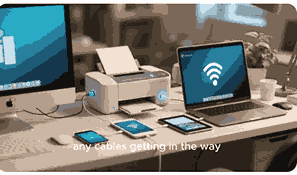
Adding a printer using an IP address is a practical solution for businesses and home offices that want to ensure a reliable connection without relying solely on USB or shared network setups. By directly assigning the printer’s IP address, you can bypass common connectivity issues, improve printing speed, and enhance network security. Whether you are setting up a new printer or connecting to an existing one, understanding how to add a printer using an IP address is crucial for both Windows and Mac operating systems. In this guide, we will cover everything from understanding printers to troubleshooting network connections.

What Is A Printer?

A printer is an essential peripheral device that converts digital data into physical output, usually on paper, making it indispensable for both personal and professional use. Modern printers include various types such as inkjet, laser, and thermal printers, each designed for specific purposes like high-quality photo printing or fast document printing. Network printers, which can connect via Wi-Fi or Ethernet, allow multiple users to access printing resources simultaneously. Printers can operate using direct USB connections, shared networks, or IP addresses, providing flexibility for different setups. Knowing the type and functionality of your printer is essential before attempting to add it via an IP address to ensure compatibility and optimal performance.

How To Find Your Printer’s IP Address

Before adding a printer using an IP address, you must locate the printer’s current IP. Most network printers display their IP address on a built-in LCD panel under network settings. Alternatively, you can print a network configuration page directly from the printer, which lists the IP address, subnet mask, and gateway information. On Windows, you can also discover the IP address by navigating to Control Panel > Devices and Printers > Printer Properties > Ports tab. For Mac users, go to System Preferences > Printers & Scanners, select the printer, and check the ‘Location’ or ‘Options & Supplies’ section. Identifying the correct IP ensures accurate configuration and prevents connection errors.

Adding A Printer Using An IP Address On Windows

To add a printer using an IP address on Windows, first open Control Panel and navigate to Devices and Printers. Click “Add a Printer” and choose “The Printer That I Want Isn’t Listed.” Select “Add a Printer Using a TCP/IP Address or Hostname” and enter the printer’s IP address. Ensure the device type is set to TCP/IP Device and click Next. Windows will attempt to detect the printer automatically and install the necessary drivers. If the printer isn’t detected, manually select the driver from the list or provide the manufacturer’s installation disk. After installation, set the printer as default if desired and print a test page to confirm successful connectivity.

Adding A Printer Using An IP Address On Mac

Mac users can add a printer using an IP address by opening System Preferences and selecting Printers & Scanners. Click the “+” button to add a new printer and choose the “IP” tab. Enter the printer’s IP address, select the correct protocol (usually HP Jetdirect – Socket or Line Printer Daemon – LPD), and provide a printer name and location for easier identification. macOS may automatically detect the printer driver, or you can choose it manually from the list or the manufacturer’s website. Once the configuration is complete, click “Add” and print a test page to verify proper setup. This method ensures a direct network connection without relying on shared computers.

Benefits Of Adding A Printer Using An IP Address

Adding a printer using an IP address offers several advantages, including increased reliability, direct network access, and improved printing speed. Unlike shared printers, networked IP printers are accessible to multiple devices without a central host, reducing downtime. Assigning a static IP prevents changes in network addresses that could disrupt connectivity. Additionally, administrators can monitor printer usage, manage permissions, and configure advanced settings remotely. For businesses, this setup also enhances security by limiting unauthorized access and ensuring that sensitive documents are printed only on designated devices. Overall, using an IP address optimizes workflow efficiency and ensures consistent printing performance.

Common Issues When Adding A Printer Using An IP Address

While adding a printer using an IP address is straightforward, several issues can arise. Incorrect IP addresses or subnet mismatches can prevent Windows or Mac from detecting the printer. Firewall settings may block communication between devices, and outdated drivers can cause errors. In some cases, DHCP-assigned IP addresses might change, disconnecting the printer. To resolve these issues, verify the IP address, ensure drivers are up-to-date, configure firewalls to allow printer traffic, and consider assigning a static IP to maintain consistency. Troubleshooting these common issues ensures smooth connectivity and long-term printer performance.

Tips For Maintaining IP-Based Printer Connections

Maintaining a printer added via IP address requires regular monitoring and updates. Periodically verify that the IP address hasn’t changed, especially if using DHCP. Keep printer firmware and drivers updated to avoid compatibility issues. Document printer IPs and network settings to simplify troubleshooting. For larger networks, consider using a dedicated print server to centralize management. Regularly clean and maintain the printer hardware to prevent jams and ensure print quality. By following these practices, you can maximize the lifespan, reliability, and efficiency of your IP-based printer connections.

Conclusion

Adding a printer using an IP address is a reliable and efficient way to manage network printing, especially in environments with multiple users or devices. By understanding printer types, finding the correct IP, and following system-specific installation steps, both Windows and Mac users can achieve seamless connectivity. With proper setup and maintenance, this method ensures faster, more secure, and more consistent printing, while minimizing common network issues. Whether for home or office use, connecting a printer via IP address enhances workflow efficiency and simplifies network management, making it an essential skill for modern computing environments.

Frequently Asked Questions

1. How Do I Add A Printer Using An IP Address?

Adding a printer using an IP address involves locating the printer’s IP via its control panel or network configuration page, then configuring the connection on your computer. On Windows, you go to Control Panel > Devices and Printers > Add a Printer > The Printer That I Want Isn’t Listed > Add a Printer Using a TCP/IP Address or Hostname, and input the IP. On Mac, open System Preferences > Printers & Scanners > + > IP tab, enter the IP address, select the correct protocol, and add the printer. This ensures a direct connection, bypassing shared network setups, and allows multiple devices to print reliably without a host computer.

2. Can I Add Any Printer Using Its IP Address?

Most network-enabled printers can be added using their IP address, including inkjet, laser, and multifunction devices. The printer must support TCP/IP connections, which is standard for modern network printers. Older models may not have network functionality, requiring USB or shared network connections. Always verify the printer’s compatibility with your operating system and ensure the correct drivers are available. Using the IP address is particularly advantageous for shared office environments, allowing multiple devices to print directly without relying on a central host.

3. What Is The Difference Between Adding A Printer Via IP And USB?

Adding a printer via IP creates a network-based connection, enabling multiple devices to print independently, while USB connections require direct physical links to a single computer. IP connections support faster, more reliable communication and allow remote management, whereas USB connections are limited by cable length and require sharing setup for multiple users. Using an IP address also reduces dependency on a host computer, improves printing workflow, and is more scalable for office environments or shared networks.

4. How Do I Assign A Static IP To My Printer?

To assign a static IP, access your printer’s network settings through its control panel or web interface. Navigate to the TCP/IP or network configuration section and select manual or static IP assignment. Input the desired IP, subnet mask, and gateway, then save the settings. Assigning a static IP prevents changes from DHCP servers, ensuring consistent connectivity when adding the printer to computers or networks. This is essential in office environments where multiple users rely on uninterrupted printing.

5. Why Is My Printer Not Detecting When Using Its IP?

If your printer isn’t detected via IP, common issues include incorrect IP address entry, subnet mismatches, firewall or antivirus blocking, and outdated drivers. Verify the IP address matches the printer’s current network configuration, ensure the computer and printer are on the same subnet, and check firewall settings. Updating drivers from the manufacturer’s website or reinstalling the printer may resolve detection issues. Static IP assignment can also prevent recurring detection failures caused by dynamic IP changes.

6. How Can I Add A Printer Using An IP On Windows 10?

In Windows 10, open Control Panel > Devices and Printers > Add a Printer. Select “The Printer That I Want Isn’t Listed” and choose “Add a Printer Using a TCP/IP Address or Hostname.” Enter the printer’s IP, ensure the device type is TCP/IP Device, and click Next. Windows will detect the printer and install drivers. If necessary, manually select the correct driver. Confirm installation by printing a test page. This method ensures reliable, network-based printing across Windows 10 devices.

7. How Can I Add A Printer Using An IP On Mac?

On a Mac, open System Preferences > Printers & Scanners and click the “+” button. Choose the IP tab, enter the printer’s IP address, select the correct protocol (usually HP Jetdirect – Socket or LPD), and input a name and location. macOS may auto-detect the driver or allow you to select it manually. Click Add and print a test page. This provides a direct network connection, ensuring reliable printing without relying on shared computers.

8. Can I Use DHCP IP For Adding A Printer?

While you can use a DHCP-assigned IP to add a printer, it’s not ideal because the IP may change, causing connection failures. Assigning a static IP is recommended to maintain consistent connectivity and avoid reconfiguring devices. DHCP may work for temporary setups or home networks but is less reliable for offices or environments where multiple devices depend on the printer.

9. What Protocol Should I Use When Adding A Printer By IP?

The most common protocols for IP printing are TCP/IP, LPD (Line Printer Daemon), and HP Jetdirect (Socket). The choice depends on the printer manufacturer and operating system compatibility. TCP/IP is standard, LPD is widely used in UNIX environments, and Jetdirect is specific to HP printers. Using the correct protocol ensures accurate communication and reduces connection errors.

10. How Do I Troubleshoot Printer IP Connection Issues?

To troubleshoot IP connection issues, first verify the printer’s IP address and ensure the computer is on the same network. Check firewall and antivirus settings to allow printer traffic. Update drivers and firmware. For recurring DHCP IP changes, assign a static IP. Ping the printer from your computer to verify network visibility. Reboot both devices if necessary. These steps typically resolve most IP-related printer connectivity issues.

11. Can I Add Multiple Printers Using Their IP Addresses?

Yes, you can add multiple printers by assigning each a unique IP address. On Windows or Mac, repeat the IP-based installation process for each printer, ensuring no conflicts between IP addresses. This method allows multiple devices to access different printers independently, improving workflow efficiency in shared networks.

12. Is It Safer To Add A Printer Using An IP Address?

Adding a printer via IP is often safer than shared network setups because it can reduce dependency on a host computer and allow administrators to manage permissions directly. Static IPs prevent unauthorized changes, and firewall configurations can limit access to authorized users only. This method enhances security, especially in business environments handling sensitive documents.

13. Can I Print Wirelessly Using An IP Address?

Yes, if your printer is network-enabled and connected via Wi-Fi or Ethernet, you can print wirelessly using its IP address. Assign the IP, configure the protocol on your computer, and the printer becomes accessible without cables. Wireless printing via IP ensures multiple devices can print directly over the network efficiently.

14. Do I Need Printer Drivers To Add By IP?

Yes, drivers are required to translate computer data into a format the printer can process. While Windows and macOS may auto-detect and install drivers, it’s best to download the latest version from the manufacturer’s website. This ensures compatibility, access to advanced features, and improved print quality when adding a printer using an IP address.

15. How Do I Print A Test Page After Adding By IP?

After installing the printer via IP, open Devices and Printers (Windows) or Printers & Scanners (Mac). Select the printer, access its properties, and click “Print Test Page” or “Open Print Queue > Printer > Print Test Page.” This verifies connectivity, driver functionality, and print quality, confirming the IP-based setup is successful.

16. Can I Change My Printer’s IP Address Later?

Yes, you can change a printer’s IP by accessing its network settings through the control panel or web interface. Update the IP to match network requirements and reconfigure any computers connected via the previous IP. Assigning a static IP during setup reduces the need for frequent changes and ensures stable network printing.

17. What Are The Advantages Of Using IP Printing Over USB?

IP printing allows multiple devices to connect directly, improves speed and reliability, supports remote management, and reduces dependency on host computers. USB printing is limited to a single device at a time and requires sharing setups for network access. IP printing is scalable, secure, and ideal for office environments with multiple users.

18. How Do I Monitor A Printer Added By IP?

Monitoring can be done using built-in printer management software or the web interface. Check ink or toner levels, job queues, and usage statistics. Network management tools can also provide alerts for errors, low supplies, or unauthorized access attempts. Regular monitoring ensures optimal performance and reduces downtime.

19. Can I Use The Same IP Address On Multiple Printers?

No, each printer must have a unique IP address to prevent conflicts. Using duplicate IPs can result in failed connections and network errors. Assign static IPs carefully and document network configurations to avoid overlap and ensure smooth operation of all devices.

20. What Is The Best Way To Secure A Printer Added By IP?

Secure an IP printer by assigning a static IP, enabling authentication, restricting access to specific devices, and configuring firewall rules. Regularly update firmware and monitor print logs for unusual activity. Using these measures protects sensitive data and ensures reliable, controlled network printing.

FURTHER READING

A Link To A Related External Article

What Is A Printer?

Posted on Leave a comment

What Is The Fastest Printer? | High-Speed Printing Solutions For Home And Office

In today’s fast-paced digital world, efficiency in printing is no longer a luxury but a necessity. The fastest printer on the market combines advanced technology, high-speed mechanisms, and smart features to save time and increase productivity. Whether for home use, small businesses, or large corporate offices, knowing which printer delivers the best speed without compromising quality is crucial. This article explores the key features, types, and considerations to help you choose the fastest printer tailored to your printing needs. From inkjet to laser printers, we dive into everything you need to understand about high-speed printing technology and performance.

What Is A Printer?

A printer is an electronic device that converts digital documents, images, or graphics from a computer, smartphone, or tablet into physical copies on paper. Printers come in various types, including inkjet, laser, and thermal printers, each offering distinct advantages in speed, resolution, and functionality. Inkjet printers are ideal for high-quality photo prints and small-scale home use, while laser printers excel in fast document printing and high-volume office tasks. Modern printers also incorporate wireless connectivity, duplex printing, and mobile printing support, making them more versatile and user-friendly. Understanding the core function of a printer is essential to identifying which models excel in speed and efficiency.

Types Of High-Speed Printers

High-speed printers generally fall into two categories: laser and industrial-grade inkjet printers. Laser printers use electrostatic technology to transfer toner onto paper quickly, making them suitable for offices requiring bulk printing. Industrial inkjet printers, on the other hand, utilize multiple nozzles and rapid ink ejection systems to print at exceptionally high speeds without sacrificing quality. Factors such as print resolution, duty cycle, and connectivity options also influence the overall speed. Some advanced models can print up to 100 pages per minute or more, while smaller desktop versions may offer 30-50 pages per minute. Choosing the right type depends on balancing speed with quality, volume, and cost.

Key Features That Influence Printing Speed

Several features affect a printer’s speed, including print resolution, processor power, memory, and connectivity. High-resolution printers typically print slower, but many modern devices balance speed with quality through smart print algorithms. A powerful processor and ample memory allow printers to handle complex documents efficiently, reducing wait times. Connectivity options like USB 3.0, Ethernet, and Wi-Fi Direct can significantly affect printing speed, particularly in office environments with multiple users. Additional features like automatic duplexing and high-capacity trays also contribute to efficiency, minimizing manual intervention and maximizing productivity.

Benefits Of Using The Fastest Printer

Using the fastest printer offers tangible benefits beyond just time savings. In professional environments, it enhances productivity by allowing employees to focus on other tasks while printing large volumes of documents quickly. Fast printers reduce waiting time for clients, streamline workflows, and decrease operational bottlenecks. For creative professionals, high-speed printers with advanced color management maintain image quality without sacrificing speed. Moreover, fast printers often include robust reliability features, reducing paper jams and downtime. Investing in the right high-speed printer can ultimately lead to improved efficiency, cost-effectiveness, and overall satisfaction for both personal and business use.

Factors To Consider Before Buying A Fast Printer

When selecting a high-speed printer, consider your volume requirements, budget, connectivity options, and paper types. Large offices may benefit from multifunction laser printers with automatic feeding and duplex printing, while small businesses might prioritize compact inkjet models for occasional high-speed tasks. Evaluate monthly duty cycles to ensure the printer can handle your workload without wear and tear. Cost per page, toner or ink efficiency, and compatibility with various devices are equally important. Additionally, consider the availability of customer support and warranty coverage to protect your investment. Researching these factors ensures you choose a printer that balances speed, quality, and cost effectively.

Frequently Asked Questions

1. What Is The Fastest Printer?

The fastest printer depends on the type and technology used. Laser printers generally lead in speed due to their electrostatic printing mechanism, with models capable of printing over 100 pages per minute for office-grade machines. Industrial inkjet printers also offer high speeds, often matching laser printers in volume while delivering excellent color quality. Consumer-grade high-speed printers typically achieve 30-50 pages per minute. Factors like processor speed, memory, connectivity, and print resolution influence the overall speed. Advanced models also incorporate duplex printing and large-capacity trays to enhance efficiency. Ultimately, the fastest printer is one that aligns with your specific printing needs, balancing speed, volume, and print quality.

2. How Does A High-Speed Printer Work?

High-speed printers use either laser or inkjet technology to rapidly transfer digital data onto paper. Laser printers utilize a drum charged with static electricity that attracts toner particles, which are then fused onto the paper with heat, enabling fast printing with minimal delay. Industrial inkjet printers spray multiple streams of ink simultaneously using precise nozzles, allowing high-speed output without compromising image quality. Both types leverage powerful processors, memory buffers, and efficient paper handling systems to maintain speed. Advanced features like duplexing, multiple trays, and network connectivity further enhance productivity, making high-speed printers ideal for offices, schools, and other high-volume environments.

3. What Is The Difference Between Laser And Inkjet Printers?

Laser and inkjet printers differ primarily in speed, technology, and cost per page. Laser printers use toner and electrostatic printing, making them faster and more cost-effective for high-volume document printing. Inkjet printers spray liquid ink through nozzles, producing higher-quality images, making them ideal for photos and detailed graphics. Laser printers typically handle larger paper volumes efficiently, while inkjets may require frequent refills for heavy use. Additionally, inkjet printers are generally quieter and more compact, suitable for home use. Choosing between them depends on your printing priorities: laser for speed and volume, inkjet for image quality and color precision.

4. Can Printers Print Wirelessly At High Speeds?

Yes, many modern printers offer wireless printing without compromising speed. Features like Wi-Fi Direct, Ethernet, and mobile printing apps allow high-speed printers to handle large print jobs efficiently. Wireless printing convenience eliminates the need for cables while maintaining productivity. However, network quality can influence overall speed. A strong, high-bandwidth connection ensures rapid data transfer, especially for complex documents or high-resolution images. Some printers also support cloud printing services, allowing remote printing at optimal speeds. For offices and home users seeking flexibility and efficiency, wireless high-speed printers combine convenience with performance, making them a valuable tool in modern workflows.

5. What Are The Benefits Of Duplex Printing In High-Speed Printers?

Duplex printing allows automatic printing on both sides of a paper, enhancing efficiency and reducing paper consumption. In high-speed printers, duplexing minimizes manual intervention, saving time when handling large documents. This feature is particularly beneficial in offices that require high-volume reports or presentations. Duplex printing also supports eco-friendly practices by reducing paper waste, contributing to sustainability goals. Many modern high-speed printers integrate duplex printing seamlessly without slowing down overall output. By combining speed, automation, and environmental benefits, duplex printing ensures maximum productivity while maintaining print quality and operational efficiency in professional and personal printing scenarios.

6. How Important Is Printer Memory For Speed?

Printer memory plays a crucial role in maintaining high-speed performance, particularly when handling complex or large documents. Adequate memory allows the printer to store and process entire print jobs quickly, reducing delays and buffering issues. High-resolution images, graphics-heavy files, and multiple-page documents require more memory to ensure smooth printing. Printers with limited memory may slow down or queue jobs, especially in shared office environments. Upgrading or choosing a printer with sufficient memory ensures that speed is consistent across different tasks. Combined with a fast processor, ample memory optimizes overall efficiency, enabling high-speed printing without compromising document quality or workflow.

7. What Is The Role Of Print Resolution In Printer Speed?

Print resolution, measured in dots per inch (DPI), affects the clarity and detail of printed output. Higher resolution provides sharper images but may slow down printing speed due to increased data processing. High-speed printers balance resolution and speed using optimized print algorithms, allowing professional-quality output without significant delays. For text-heavy documents, moderate resolution is sufficient, maintaining rapid printing. For photo and graphics work, higher resolution may slightly reduce speed but ensures superior visual quality. Understanding the trade-off between resolution and speed helps users choose a printer that meets both quality and performance requirements, ensuring efficiency in diverse printing tasks.

8. How Does Paper Handling Affect Printer Speed?

Efficient paper handling significantly impacts overall printing speed. Printers with high-capacity trays, multiple feed options, and automatic document feeders can process large print jobs faster. Features like jam-resistant designs, adjustable paper guides, and duplexing also reduce downtime and manual intervention. In high-speed environments, continuous feeding mechanisms ensure consistent output without waiting for refills or paper adjustments. Industrial and office-grade printers often incorporate multiple trays to handle various paper sizes simultaneously. Optimized paper handling, combined with fast printing mechanisms, ensures maximum productivity and minimizes delays, particularly for businesses that rely on bulk printing for operations, reports, and client communications.

9. Are High-Speed Printers Suitable For Home Use?

High-speed printers can be suitable for home use, especially for users who print large volumes or require rapid output for business or creative projects. Compact models offer fast printing while maintaining manageable size and cost. Features like wireless connectivity, duplex printing, and mobile printing support enhance convenience for home users. However, extremely high-volume industrial printers may be unnecessary and costly for typical household tasks. Evaluating printing needs, frequency, and budget ensures you select a model that provides speed without overinvestment. Modern high-speed home printers balance efficiency, quality, and functionality, making them practical solutions for both personal and small-scale professional printing.

10. What Are The Most Reliable Brands For Fast Printers?

Reliable brands in the high-speed printer market include HP, Canon, Epson, Brother, and Xerox. These manufacturers consistently produce models with robust performance, efficient processing, and long-lasting components. HP and Brother are well-known for laser printers with fast output and high durability, while Canon and Epson offer advanced inkjet printers that combine speed with superior color accuracy. Xerox specializes in office-grade machines optimized for large-scale, high-volume printing. Choosing reputable brands ensures consistent speed, fewer maintenance issues, and access to customer support and warranty services. Investing in trusted manufacturers reduces downtime and maximizes productivity, making them ideal for both home and professional environments.

11. How Much Does A High-Speed Printer Cost?

The cost of high-speed printers varies widely based on technology, features, and intended usage. Consumer-grade models range from $150 to $500, offering 30-50 pages per minute and compact designs suitable for home or small office use. Professional or office-grade printers, including industrial models, can cost $1,000 to $5,000 or more, providing over 100 pages per minute, multiple paper trays, and advanced connectivity. Additional costs include toner or ink, maintenance kits, and optional upgrades. When assessing cost, it’s essential to balance upfront investment with long-term efficiency, considering speed, volume capacity, and operational expenses to ensure the printer meets your productivity goals.

12. What Is The Average Printing Speed Of Fast Printers?

The average printing speed of fast printers depends on type and purpose. Consumer-grade laser printers typically produce 30-50 pages per minute (PPM), while high-end office laser models can exceed 100 PPM. Industrial inkjet printers may also reach similar speeds, with rapid multi-nozzle technology allowing continuous printing of high-quality images. Factors influencing speed include document complexity, resolution, connectivity, and paper handling. For everyday tasks, a printer delivering 30-50 PPM offers sufficient efficiency, while businesses with high-volume demands may require office-grade machines. Understanding average speed helps users select a printer that aligns with workflow needs without sacrificing print quality or reliability.

13. How Can I Increase My Printer’s Speed?

Increasing printer speed involves optimizing hardware, settings, and workflow. Using draft or economy print modes reduces resolution, allowing faster output for documents where quality is less critical. Ensuring sufficient memory, updating firmware, and connecting via high-speed USB or Ethernet can improve performance. Reducing the use of high-resolution images for simple documents, consolidating print jobs, and utilizing duplex printing efficiently also minimizes delays. For networked printers, maintaining a strong Wi-Fi signal or wired connection ensures rapid data transfer. Regular maintenance, such as cleaning print heads and replacing worn components, further enhances speed. By combining these strategies, users can maximize their printer’s output and efficiency.

14. What Role Does Connectivity Play In Printing Speed?

Connectivity directly impacts the speed at which print jobs reach the printer. Wired connections like USB 3.0 or Ethernet typically offer faster data transfer than standard Wi-Fi, reducing wait times for large files. High-speed wireless protocols, Wi-Fi Direct, and network printers allow multiple users to print simultaneously without significant delays. Cloud printing services can also enhance efficiency by enabling remote submissions. Poor network performance, interference, or bandwidth limitations can slow printing, regardless of the printer’s capabilities. Choosing the right connectivity options ensures seamless communication between devices and printer, allowing optimal speed and productivity for both home and office environments.

15. Can Ink Quality Affect Printer Speed?

Ink quality influences printer speed, particularly for inkjet models. High-quality ink with optimized viscosity flows smoothly through nozzles, preventing clogs and minimizing delays. Low-quality or incompatible inks can cause smudging, streaking, or misfires, requiring repeated passes that slow output. Fast printers designed for high-volume printing often work best with manufacturer-recommended inks to maintain consistent speed and image quality. Regular replacement of cartridges and avoiding expired ink ensures reliable performance. Additionally, using ink suited for the printer’s technology and print resolution contributes to faster, cleaner printing, reducing maintenance interruptions and ensuring efficient operation over time.

16. Are There Portable High-Speed Printers?

Yes, portable high-speed printers exist, offering compact designs for on-the-go printing without compromising speed. These printers typically use inkjet or small-scale laser technology to deliver rapid output in a lightweight, battery-powered form. Ideal for remote work, travel, or mobile businesses, portable high-speed printers balance efficiency, portability, and connectivity options such as Bluetooth and Wi-Fi. While they may not match industrial models in volume or PPM, modern portable devices provide sufficient speed for essential documents, receipts, or small presentations. Portable high-speed printers combine convenience and performance, allowing users to maintain productivity outside traditional office settings.

17. What Maintenance Is Required For Fast Printers?

Maintenance is crucial to sustain the speed and efficiency of high-speed printers. Regular tasks include cleaning print heads, replacing toner or ink cartridges, and ensuring paper trays are correctly aligned and filled. Firmware updates, memory optimization, and clearing paper jams promptly maintain performance. High-speed laser printers may require periodic replacement of drums and fuser units to prevent slowdowns, while inkjet printers benefit from nozzle cleaning cycles. Preventive maintenance reduces downtime, ensures consistent print quality, and prolongs the printer’s lifespan. Following manufacturer-recommended schedules and using genuine parts help maintain speed, reliability, and productivity over time.

18. How Do Industrial Printers Compare To Office Printers In Speed?

Industrial printers significantly outperform standard office printers in speed, often exceeding 100 pages per minute and handling massive volumes without frequent refills. They utilize advanced multi-nozzle inkjet systems or large-capacity laser technology, optimized for continuous operation. Office printers, while fast, typically focus on moderate volume, balancing speed, quality, and cost. Industrial models also offer robust paper handling, automated workflows, and durability features to withstand constant use. Businesses requiring large-scale printing, packaging, or high-resolution graphics benefit from industrial printers’ superior speed and efficiency. However, they require higher investment and space, making them suitable primarily for commercial or industrial environments.

19. Are High-Speed Printers Energy Efficient?

Many modern high-speed printers incorporate energy-saving technologies to reduce power consumption without sacrificing speed. Features like automatic sleep mode, low-energy fusing, and efficient processors minimize electricity use during idle periods. High-efficiency toner and ink formulations also contribute to sustainability. While fast printers may consume more energy during operation due to high-speed mechanisms, advancements in energy efficiency help balance performance and environmental impact. Businesses and environmentally conscious users benefit from selecting printers with Energy Star certification or similar standards, ensuring high-speed printing is both cost-effective and eco-friendly, supporting long-term operational sustainability.

20. Can I Print Photos Quickly On A High-Speed Printer?

High-speed printers can print photos efficiently, particularly inkjet models with advanced color management and multi-nozzle technology. While laser printers are faster for documents, inkjets provide superior color accuracy and resolution for images. Modern high-speed inkjet printers balance speed and quality, allowing rapid photo printing without significant degradation. Features like dedicated photo modes, borderless printing, and optimized ink usage enhance efficiency. Users should select printers with sufficient DPI and color calibration for consistent results. Combining high-speed capabilities with advanced photo printing technology ensures fast, high-quality images suitable for professional photography, creative projects, or personal use.

FURTHER READING

A Link To A Related External Article

What Is A Printer?

Posted on Leave a comment

What Is Printer Sharing? | How To Share Printers Over A Network For Efficient Printing

Printer sharing is a technology that allows multiple computers or devices to access and use a single printer over a local area network (LAN) or via the internet. It enables businesses, educational institutions, and households to save money by reducing the need for multiple printers while improving convenience. Printer sharing is essential in modern offices because it allows centralized management, reduces maintenance costs, and ensures consistent printing quality. Understanding how printer sharing works, the setup process, and troubleshooting methods is crucial for maximizing efficiency and productivity in both home and corporate environments.

What Is A Printer?

A printer is a peripheral device that produces a hard copy of digital documents, images, or graphics stored on computers, smartphones, or other electronic devices. Printers come in various types, including inkjet, laser, thermal, and multifunction printers that can print, scan, copy, and fax. Modern printers often support wireless connectivity, network printing, and cloud printing features. They rely on drivers and software to communicate with devices and interpret digital data into physical print. Printers are essential tools for businesses, schools, and homes, enabling the production of official documents, marketing materials, reports, and personal projects with high efficiency and quality.

Benefits Of Printer Sharing

Printer sharing provides numerous advantages, such as cost savings by reducing the number of printers needed in an office or home setup. It simplifies maintenance because fewer printers require servicing and fewer consumables like ink or toner. Shared printers improve workflow efficiency by allowing multiple users to send print jobs simultaneously from different devices without requiring physical transfers. It also supports remote printing, where users can print from different locations through network or cloud-based connections. Printer sharing enhances collaboration in team environments and ensures consistent output quality by standardizing the printer used across devices, making it an indispensable feature for modern networked environments.

How To Set Up Printer Sharing On Windows

Setting up printer sharing on a Windows system involves several steps. First, ensure the printer is installed on the host computer and functioning correctly. Then, access the Control Panel, navigate to “Devices and Printers,” right-click the printer, and select “Printer Properties.” In the “Sharing” tab, enable “Share this printer” and provide a share name recognizable to other network users. On client computers, open “Devices and Printers,” select “Add a printer,” and choose “Network printer” to connect. Ensure all computers are on the same network and have necessary permissions. This setup allows seamless printing from multiple Windows devices without additional hardware.

How To Share Printers On Mac

To share a printer on a Mac, first ensure the printer is installed and connected to your Mac device. Go to “System Preferences,” then select “Sharing,” and enable “Printer Sharing.” Choose the printer you want to share and specify which users or groups can access it. On other Mac devices, open “System Preferences” and “Printers & Scanners” to add the shared printer by locating it on the network. Mac printer sharing supports both wired and wireless network connections, making it ideal for offices or homes using Apple devices. It allows multiple users to print efficiently without connecting directly to the physical printer.

Wireless Printer Sharing

Wireless printer sharing allows devices to connect to a printer without physical cables, providing convenience and flexibility. It works over Wi-Fi networks and can be configured through the printer’s onboard menu or companion apps. Wireless sharing is particularly useful in large offices or homes where printers are centrally located, eliminating the need for long cables. Many modern printers support Wi-Fi Direct, allowing devices to connect directly without a router. Cloud printing services also enhance wireless printer sharing, enabling printing from smartphones, tablets, and remote locations. Security settings such as passwords and network encryption are crucial to prevent unauthorized access.

Printer Sharing Troubleshooting

Troubleshooting printer sharing issues typically involves checking network connections, verifying printer drivers, and ensuring proper permissions are granted. Common problems include the printer not appearing on the network, print jobs being stuck in the queue, or access denial due to incorrect user permissions. Restarting the printer and computers, updating drivers, and verifying firewall settings often resolve connectivity issues. Ensuring that all devices are on the same network and compatible with the shared printer is essential. Advanced troubleshooting may involve reconfiguring IP addresses, resetting the printer, or consulting the manufacturer’s support for network or driver issues to restore efficient shared printing operations.

Security Considerations For Printer Sharing

Printer sharing introduces potential security risks if not managed properly. Unauthorized access to shared printers can lead to data breaches, theft of sensitive documents, or malware infections. To mitigate risks, enable user authentication, set strong passwords, and restrict access to specific users or groups. Using encrypted networks and secure printing protocols ensures that print jobs remain confidential. Regularly updating printer firmware and software also helps prevent vulnerabilities. Businesses should implement monitoring systems to track printing activities and detect suspicious behavior. By applying proper security measures, printer sharing can remain safe and efficient without compromising sensitive information.

Printer Sharing Best Practices

Best practices for printer sharing include positioning the printer in a central location for easy access, maintaining a consistent network configuration, and updating drivers regularly. Limit access to essential users to improve security, and monitor usage to manage consumables effectively. Establish clear guidelines for print job priorities in busy environments. Consider using cloud-based or virtual printing solutions for remote access. Regularly back up printer settings and configurations to facilitate quick recovery in case of system failures. Adopting these practices ensures that printer sharing remains efficient, secure, and cost-effective, benefiting both small offices and large organizations.

Conclusion

Printer sharing is a vital technology for modern homes and businesses, enabling multiple devices to access a single printer efficiently. It saves costs, enhances workflow, and supports collaboration while providing flexible printing options through wired and wireless networks. Proper setup, troubleshooting, and security measures are critical to maximize the benefits of printer sharing. Understanding the principles, advantages, and best practices ensures smooth operation and long-term reliability. Whether using Windows, Mac, or cloud-based solutions, printer sharing is an indispensable tool for optimizing printing resources and maintaining productivity in a connected environment.

Frequently Asked Questions

1. What Is Printer Sharing?

Printer sharing is the process of allowing multiple computers or devices to use a single printer over a local area network (LAN) or internet connection. It enables cost savings by reducing the need for multiple printers and allows centralized management of print jobs. By sharing a printer, businesses and households can streamline printing workflows, improve accessibility, and increase productivity. Printer sharing can be achieved using wired or wireless connections, cloud services, or network-attached printers. It requires proper setup, including installing printer drivers, enabling sharing options, and managing user permissions. Security considerations like authentication and encryption are crucial to prevent unauthorized access and maintain document confidentiality.

2. How Do I Set Up Printer Sharing On Windows?

Setting up printer sharing on Windows involves installing the printer on the host computer, enabling the “Share this printer” option in printer properties, and giving the printer a share name recognizable by other users. On client computers, users can add the shared printer through “Devices and Printers” and select “Network Printer.” Ensuring all devices are on the same network and have proper permissions is essential. This method allows multiple Windows devices to print to a single printer without additional hardware. Proper driver installation and network configuration are necessary to avoid connectivity issues. Troubleshooting may involve restarting devices, checking firewall settings, and updating drivers for seamless printer sharing.

3. How Can I Share A Printer On Mac?

To share a printer on Mac, install and connect the printer to the Mac device, then navigate to “System Preferences,” select “Sharing,” and enable “Printer Sharing.” Choose the printer to share and assign user access permissions. Other Mac devices can connect via “Printers & Scanners” by selecting the network-shared printer. Mac printer sharing works over wired and wireless networks, providing efficient printing for multiple users. It also supports AirPrint for iOS devices, enabling seamless integration across Apple ecosystems. Proper network configuration and user permissions are critical to avoid access issues, ensuring a smooth printer-sharing experience.

4. What Are The Benefits Of Printer Sharing?

Printer sharing offers cost savings by reducing the number of printers needed, simplifying maintenance, and improving workflow efficiency. Multiple users can print simultaneously without needing individual printers, saving space and consumables like ink and paper. Shared printers enhance collaboration in offices, ensuring consistent print quality and centralized management. Remote and wireless printing options further increase convenience. Printer sharing also helps track printing usage, manage resources, and reduce environmental impact. By implementing printer sharing, organizations and households can optimize printing processes, save money, and maintain a productive work environment.

5. What Types Of Printers Support Sharing?

Most modern printers support sharing, including inkjet, laser, all-in-one, and network printers. Network-attached printers have built-in sharing capabilities, allowing multiple users to connect directly over LAN or Wi-Fi. Wireless printers support Wi-Fi or cloud printing, enabling remote access. Multifunction printers also support shared use for printing, scanning, and copying. Compatibility with operating systems like Windows, Mac, and mobile devices is essential for seamless sharing. Selecting a printer with robust sharing features ensures efficient utilization, easy management, and reduced costs. Ensuring the printer supports necessary protocols like IPP, AirPrint, or Google Cloud Print enhances accessibility for all users.

6. How Does Wireless Printer Sharing Work?

Wireless printer sharing works by connecting the printer and devices to the same Wi-Fi network or using Wi-Fi Direct for direct connections. Devices communicate with the printer over the network using protocols like IPP or AirPrint. Cloud printing services allow printing from remote locations by sending print jobs over the internet. Wireless sharing eliminates the need for physical cables, improving flexibility and convenience. Security measures such as passwords, network encryption, and user authentication protect sensitive documents. Proper configuration of network settings ensures reliable connectivity, while updated drivers and firmware maintain performance. Wireless printer sharing is ideal for homes, offices, and educational environments.

7. How Do I Troubleshoot Printer Sharing Issues?

Troubleshooting printer sharing issues involves checking network connections, verifying printer drivers, and ensuring user permissions. Common problems include the printer not appearing on the network, print jobs stuck in the queue, or access denial. Restarting the printer and devices, updating drivers, and reviewing firewall settings often resolve issues. Ensuring devices are on the same network and compatible with the shared printer is essential. Advanced troubleshooting may require reconfiguring IP addresses, reinstalling the printer, or consulting manufacturer support. Regular maintenance and monitoring help prevent future issues, ensuring uninterrupted shared printing.

8. Can I Share A Printer Over The Internet?

Yes, printers can be shared over the internet using cloud printing services, VPNs, or network-attached printers with remote access features. Cloud platforms like Google Cloud Print (legacy) or manufacturer apps allow users to send print jobs from any location. Internet printer sharing is ideal for remote employees, multiple office branches, or home offices. Security measures such as encryption, authentication, and access restrictions are crucial to prevent unauthorized access. Proper setup involves linking the printer to the cloud service, installing necessary software on client devices, and ensuring stable internet connectivity. Internet sharing enhances flexibility and accessibility.

9. What Security Measures Are Needed For Printer Sharing?

Security in printer sharing is vital to prevent unauthorized access and protect sensitive data. Use strong passwords, restrict access to specific users, and enable user authentication. Encrypt network connections and update printer firmware regularly to prevent vulnerabilities. Monitoring printing activities can detect unusual behavior and potential breaches. For cloud or internet sharing, secure accounts and encrypted communication protocols are essential. Implementing these security measures ensures shared printing remains safe, protecting confidential documents while maintaining workflow efficiency. Neglecting security can lead to data theft, malware infections, or misuse of printing resources.

10. How Do I Manage Print Jobs On A Shared Printer?

Managing print jobs on a shared printer involves using print queues, prioritization settings, and administrative tools. Users can view, pause, or cancel print jobs from their devices. Administrators can configure rules for job order, quotas, and usage tracking. Software tools allow monitoring print volumes, generating reports, and optimizing printer performance. Effective management prevents congestion, reduces wasted paper, and ensures critical documents are printed promptly. For large offices, implementing print server solutions or centralized management software streamlines shared printing, providing control and accountability while enhancing efficiency and user satisfaction.

11. What Is The Difference Between Wired And Wireless Printer Sharing?

Wired printer sharing uses physical connections like USB or Ethernet cables to connect devices to the printer or print server. Wireless sharing relies on Wi-Fi or Bluetooth networks for device communication. Wired sharing provides stable connections but limits flexibility and requires physical proximity. Wireless sharing offers convenience, mobility, and remote printing capabilities. Both methods require proper configuration and driver installation. Choosing the appropriate method depends on the environment, user needs, and network setup. Many modern printers support both wired and wireless sharing, providing versatility and efficient access for multiple users.

12. Can Multiple Users Print Simultaneously On A Shared Printer?

Yes, multiple users can print simultaneously on a shared printer. Print jobs are queued in the printer’s memory or print server software. The printer processes each job sequentially or in parallel, depending on capabilities. Proper network configuration ensures jobs are received and managed efficiently. Print servers or advanced printer software can handle large volumes, prioritize urgent jobs, and prevent conflicts. Shared printers improve workflow efficiency, reduce delays, and minimize the need for multiple devices. Administrators can monitor job queues to ensure fair access and optimize resource usage, especially in busy office environments.

13. How Do I Enable Printer Sharing On Network Printers?

To enable printer sharing on network printers, access the printer’s web interface or onboard menu. Locate network or sharing settings and enable sharing or remote access options. Assign IP addresses, configure user permissions, and ensure devices on the network can detect the printer. For advanced setups, configure firewall rules and security protocols. Installing drivers on client devices allows seamless access. Network printer sharing improves accessibility, reduces hardware costs, and supports multiple users efficiently. Following manufacturer guidelines ensures proper setup and prevents connectivity issues, providing reliable shared printing services.

14. What Are Common Printer Sharing Problems?

Common printer sharing problems include network connectivity issues, driver incompatibility, incorrect permissions, and print job congestion. Users may experience the printer not appearing on the network, delayed printing, or incomplete jobs. Firewall or antivirus settings can block shared access. Outdated firmware or drivers can cause errors. Resolving these issues involves verifying network connections, updating drivers, adjusting permissions, and restarting devices. For persistent problems, consulting printer manuals or technical support helps restore functionality. Proper setup and regular maintenance reduce these common challenges and ensure smooth, reliable shared printing in both home and office environments.

15. How Do I Share A Printer Between Windows And Mac?

Sharing a printer between Windows and Mac requires ensuring the printer is compatible with both systems. Install the printer on the host device and enable sharing. On Mac, configure “Printer Sharing” and add the printer on Windows via “Add a Printer” and network selection, or vice versa. Drivers must be installed on both systems. For cross-platform wireless sharing, use IPP, AirPrint, or manufacturer-provided software. Network configuration should allow both operating systems to detect the shared printer. Proper setup enables seamless printing across different platforms, improving productivity in mixed-device environments.

16. What Role Do Printer Drivers Play In Sharing?

Printer drivers are software that allows devices to communicate with printers. In sharing setups, drivers ensure that print jobs are correctly interpreted and formatted, enabling smooth printing from multiple computers. Incompatible or outdated drivers can prevent shared printing, cause errors, or produce poor print quality. Each device accessing a shared printer must have the appropriate driver installed. Drivers also provide access to printer settings, security options, and advanced features. Regular updates and correct driver installation are crucial for maintaining efficient, reliable, and secure printer sharing across networks.

17. Can I Share A Printer On A Mobile Device?

Yes, many printers support mobile sharing through Wi-Fi, Bluetooth, or cloud-based apps. Smartphones and tablets can print directly using AirPrint, Google Cloud Print alternatives, or manufacturer apps. Mobile sharing allows remote and on-the-go printing, ideal for home and office users. Proper network configuration, driver installation, and app setup ensure compatibility. Security settings like authentication and encryption protect documents. Mobile printer sharing enhances flexibility, enabling users to print without traditional computers, supporting efficient workflows for modern digital environments.

18. How Do I Optimize Printer Sharing Performance?

Optimizing printer sharing performance involves proper network setup, using updated drivers, and prioritizing print jobs. Positioning printers centrally improves accessibility, while high-speed connections reduce delays. Implementing print servers or management software enhances queue handling. Monitoring usage and maintaining consumables prevent interruptions. Security configurations ensure uninterrupted access. For large environments, load balancing and job scheduling prevent congestion. Optimizing settings like print quality, duplex printing, and paper selection can improve speed and efficiency. Regular maintenance, firmware updates, and monitoring ensure long-term performance for shared printers.

19. Is Printer Sharing Cost-Effective For Businesses?

Yes, printer sharing significantly reduces hardware, maintenance, and consumable costs. By centralizing printing, businesses require fewer devices, saving on energy, space, and supplies. Shared printers streamline workflows, improve accessibility, and enhance collaboration among employees. Remote or cloud printing extends accessibility without additional hardware. Monitoring usage allows better resource management and budgeting. Investing in reliable shared printers ensures high-quality output and long-term cost savings. For organizations of any size, printer sharing is a practical and efficient approach to manage printing operations while reducing expenses.

20. What Are The Best Practices For Printer Sharing?

Best practices for printer sharing include positioning printers centrally, limiting access to authorized users, and updating drivers regularly. Use strong passwords, authentication, and network encryption for security. Monitor usage to optimize resources and prevent congestion. Establish clear guidelines for print priorities and maintenance schedules. Implement cloud or virtual printing for remote access. Regularly back up settings and configurations for quick recovery in case of failures. Following these practices ensures printer sharing remains efficient, secure, and reliable, benefiting both small offices and large organizations while maximizing productivity and minimizing costs.

FURTHER READING

A Link To A Related External Article

What Is A Printer?

Posted on Leave a comment

How To Fix A Printer That Won’t Print Colour | A Complete Guide To Troubleshooting Color Printing Issues

Printers are essential tools for home offices, businesses, and personal projects, but encountering a printer that won’t print color can be frustrating. Whether it’s an inkjet, laser, or all-in-one printer, color printing problems are often caused by common issues such as empty cartridges, misaligned printheads, driver problems, or software glitches. Understanding why your printer is failing to print color and learning the troubleshooting steps can save you time, money, and frustration. In this comprehensive guide, we will explore step-by-step solutions, preventive tips, and frequently asked questions to help you fix a printer that won’t print color efficiently and effectively.

What Is A Printer?

A printer is an output device that converts digital data from a computer, smartphone, or other device into a physical copy on paper. Printers can produce black-and-white or color prints and use different technologies, including inkjet, laser, thermal, and dot matrix. Inkjet printers spray liquid ink directly onto the paper, offering high-quality color output, while laser printers use toner powder and heat for fast printing. Most modern printers are equipped with multiple cartridges for cyan, magenta, yellow, and black, enabling full-color printing. Proper maintenance, software updates, and correct installation of cartridges are crucial for consistent color output.

Common Reasons A Printer Won’t Print Color

Several factors can prevent a printer from producing color prints. Low or empty ink cartridges are the most common issue. Clogged nozzles or misaligned printheads in inkjet printers can also block color ink from flowing properly. Additionally, incorrect printer settings, outdated drivers, and software conflicts may restrict color printing. Some printers automatically switch to grayscale mode if one color cartridge is empty or low. Understanding these underlying causes is essential to diagnosing the problem accurately. By checking ink levels, performing nozzle tests, and updating drivers, users can often restore full-color printing without professional assistance.

How To Check Ink Levels And Replace Cartridges

One of the first steps in fixing a printer that won’t print color is verifying the ink levels. Most modern printers have a display or software interface that indicates cartridge status. For inkjet printers, open the cartridge compartment and inspect the cartridges visually. If any are low or empty, replace them with compatible color cartridges. Always use the correct cartridge type recommended by the manufacturer. After installing new cartridges, run a test page or a nozzle check pattern to ensure all colors are printing correctly. Proper handling and installation can prevent leaks and avoid triggering error messages that may halt color printing.

Cleaning And Aligning Printheads

Clogged printheads often cause missing colors or streaks in printed documents. Most printers include a maintenance option to clean and align printheads. This process can be initiated from the printer menu or the software utility on your computer. Running multiple cleaning cycles may be necessary if colors are severely blocked. For stubborn clogs, removing and gently cleaning the printheads manually with distilled water or manufacturer-recommended cleaning solutions can help. Alignment ensures that each color layer is correctly placed on the paper, preventing blurred or uneven prints. Regular maintenance keeps your printer in optimal condition and reduces the risk of future color printing issues.

Checking Printer Settings For Color Printing

Sometimes the problem isn’t hardware-related but stems from incorrect printer settings. Verify that the document is set to print in color rather than grayscale or black-and-white. Access the printer properties from your computer’s print dialog and select the correct color options. Ensure the correct paper type is selected, as some printers adjust ink usage based on paper quality. Updating printer drivers can also resolve software issues that prevent color printing. Restarting both the printer and the computer after adjusting settings ensures changes are applied. Ensuring correct settings prevents unnecessary troubleshooting of hardware components when the issue is software-related.

Updating Printer Drivers And Firmware

Outdated or corrupted drivers can interfere with your printer’s ability to print color documents. Visit the manufacturer’s website to download the latest drivers compatible with your operating system. Installing updates often includes bug fixes, new features, and improved performance. Firmware updates directly on the printer can also resolve glitches that affect color printing. After updating, restart both the printer and your computer, then attempt a test print. Keeping drivers and firmware current ensures your printer functions efficiently and minimizes software-related color printing problems. Many manufacturers provide automated tools to detect outdated software and install updates seamlessly.

Preventive Maintenance Tips For Color Printers

Regular preventive maintenance extends the life of your printer and ensures consistent color quality. Clean the printer exterior and interior to prevent dust buildup. Perform periodic nozzle checks and printhead cleaning cycles. Avoid leaving empty cartridges in the printer for extended periods, as this can dry out ink nozzles. Use high-quality paper suitable for your printer type to achieve optimal color output. Store cartridges properly if not in use, and run test prints occasionally to keep ink flowing. By implementing these practices, users can avoid common causes of color printing failures and reduce the need for frequent troubleshooting.

Conclusion

Fixing a printer that won’t print color requires a combination of hardware inspection, software updates, and correct settings. Identifying whether the problem lies with ink cartridges, printheads, printer settings, or drivers is the first step toward resolution. Regular maintenance and preventive measures can prevent recurring issues and ensure high-quality color prints. By following this guide, users can effectively troubleshoot and restore their printer’s color functionality, saving time and avoiding unnecessary repair costs.

Frequently Asked Questions

1. How Do I Fix A Printer That Won’t Print Color?

Fixing a printer that won’t print color begins with checking the ink cartridges to ensure none are empty or dried out. Replace low or empty cartridges with compatible, high-quality options. Next, perform a printhead cleaning and alignment through the printer software or menu to clear clogged nozzles. Check printer settings to confirm color printing is enabled and the document is not set to grayscale. Updating printer drivers and firmware can resolve software-related issues preventing color output. If the problem persists, inspect the printer for paper type compatibility or hardware malfunctions, and consider contacting the manufacturer for advanced troubleshooting or service.

2. Why Is My Printer Printing Only Black And White?

Printers may print only black and white due to empty color cartridges, incorrect settings, or software issues. Check that all color cartridges contain ink and are properly installed. Ensure the document is set to print in color and not grayscale in the print settings. Updating drivers can resolve conflicts preventing color printing. Running a printhead cleaning cycle may also restore color output if nozzles are clogged. In some cases, printers disable color printing if a cartridge is faulty, so replacing defective cartridges may be necessary. Regular maintenance and proper cartridge handling prevent recurring black-and-white printing problems.

3. How Do I Clean My Printer Printheads?

Cleaning printheads can restore color printing performance. Access the printer’s maintenance menu and select the cleaning or deep-clean option. For stubborn clogs, remove the printheads and gently clean with distilled water or manufacturer-recommended solutions. Avoid using harsh chemicals that may damage components. Run a nozzle check afterward to confirm all colors are flowing correctly. Repeat the process if necessary, and align printheads to ensure accurate color placement. Regular printhead cleaning prevents streaking and missing colors, ensuring optimal print quality and extending the life of your printer.

4. How Do I Check Printer Ink Levels?

Most printers provide a display or software tool to monitor ink levels. For inkjet printers, open the cartridge compartment to visually inspect ink levels. Replace low or empty cartridges promptly to prevent printing issues. Many printers offer automatic notifications when ink is running low. Running a test page or color diagnostic sheet ensures all cartridges are functioning correctly. Regularly checking ink levels allows users to anticipate replacements and avoid interruptions, ensuring consistent color output and optimal printer performance.

5. What Causes Clogged Printer Nozzles?

Clogged nozzles are usually caused by dried ink, infrequent use, or poor-quality cartridges. Ink left in printheads for extended periods may dry, obstructing the flow of color. Running cleaning cycles and using the printer regularly can prevent clogs. Using high-quality, manufacturer-recommended ink reduces the risk of blockages. In severe cases, manual cleaning may be required. Maintaining clean nozzles ensures vibrant color prints, prevents streaking, and minimizes printer malfunctions related to blocked ink pathways.

6. How Do I Align Printer Printheads?

Aligning printheads ensures accurate placement of colors on the page. Access the alignment option from the printer menu or software utility and follow the on-screen instructions. Some printers require printing an alignment test page to adjust colors manually. Proper alignment prevents blurred, overlapping, or uneven color prints. Regular alignment after replacing cartridges or cleaning printheads ensures consistent print quality and prolongs the printer’s lifespan. This step is essential for achieving professional-looking color documents.

7. Can Printer Settings Affect Color Printing?

Yes, incorrect printer settings can prevent color printing. Ensure the document is set to print in color rather than grayscale or black-and-white. Check the printer properties for color management, paper type, and print quality settings. Updating drivers can resolve software conflicts that interfere with color printing. Restart the printer and computer after adjusting settings to apply changes. Proper configuration of printer settings guarantees accurate color output and avoids unnecessary troubleshooting of hardware components.

8. How Do I Update Printer Drivers?

Visit the manufacturer’s website to download the latest drivers for your printer model and operating system. Install updates following on-screen instructions. Many manufacturers provide automatic update tools to detect outdated drivers. Updating drivers can resolve compatibility issues, fix bugs, and enhance printer performance. After installation, restart both the printer and the computer. Keeping drivers current ensures reliable color printing, prevents software-related errors, and improves overall functionality.

9. How Do I Update Printer Firmware?

Firmware updates are available through the printer’s software interface or the manufacturer’s website. Follow instructions carefully to avoid interruptions during the update process. Firmware updates can fix bugs, improve performance, and enable new features. Restart the printer after updating to ensure changes take effect. Keeping firmware current helps prevent color printing issues caused by software glitches and ensures your printer operates efficiently and reliably over time.

10. Why Is My Printer Not Recognizing New Cartridges?

Printers may not recognize new cartridges due to improper installation, protective tape left on the cartridge, or incompatibility. Remove any protective tape, ensure cartridges are seated correctly, and confirm they are compatible with your printer model. Resetting the printer or performing a power cycle can resolve recognition issues. Using high-quality, manufacturer-recommended cartridges minimizes errors and ensures consistent color output. Regular maintenance and correct installation procedures prevent recurring cartridge recognition problems.

11. How Do I Perform A Nozzle Check?

A nozzle check prints a test pattern to determine if all colors are flowing correctly. Access the printer’s maintenance menu and select the nozzle check option. Review the test page for missing or streaked colors. If any issues are detected, run cleaning cycles or manually clean printheads. Performing regular nozzle checks prevents color printing problems, maintains print quality, and identifies potential issues before they affect important documents or projects.

12. Can Using Low-Quality Ink Affect Color Printing?

Yes, low-quality or incompatible ink can cause clogs, streaks, or faded colors. Using manufacturer-recommended ink ensures consistent flow, vibrant colors, and prevents damage to printheads. Low-quality ink may also trigger error messages or reduce printer lifespan. Investing in high-quality cartridges protects your printer and ensures professional-looking color prints. Regular monitoring and proper storage of cartridges further enhance print reliability and color accuracy.

13. How Often Should I Clean My Printer?

Cleaning frequency depends on usage. Frequent printing may require monthly maintenance, while occasional users should clean every few months. Regular cleaning includes wiping exterior surfaces, cleaning paper paths, and performing printhead cleaning cycles. Proper maintenance prevents dust buildup, ink clogs, and mechanical issues. Consistent cleaning ensures optimal color output, extends printer life, and reduces the likelihood of unexpected printing problems.

14. What Paper Types Are Best For Color Printing?

High-quality, smooth paper designed for your printer type enhances color vibrancy and print clarity. Inkjet printers perform best with coated or photo paper, while laser printers require paper that can withstand heat. Using the correct paper prevents smudging, misalignment, and fading. Adjust printer settings to match the selected paper type for optimal results. Choosing the right paper ensures professional-quality color prints and reduces printer wear over time.

15. Why Does My Printer Print Faded Colors?

Faded colors may result from low ink levels, clogged nozzles, incorrect settings, or poor-quality paper. Check ink cartridges and replace if necessary. Run printhead cleaning and alignment cycles. Adjust printer settings for optimal color output, and use suitable paper. Avoid long storage of cartridges, as dried ink affects performance. By addressing these factors, users can restore vibrant, accurate colors and prevent future fading issues, ensuring professional-quality prints.

16. How Can I Prevent Color Printing Problems?

Preventive measures include regular maintenance, using high-quality ink and paper, updating drivers and firmware, and checking settings before printing. Perform periodic printhead cleaning, nozzle checks, and alignment to maintain color accuracy. Avoid leaving empty cartridges in the printer, and store spare cartridges properly. Consistent preventive care reduces the risk of clogs, faded colors, and hardware malfunctions, ensuring reliable and high-quality color printing over time.

17. Can Software Conflicts Affect Printer Color Output?

Yes, software conflicts or outdated applications can interfere with color printing. Ensure your printer driver is compatible with your operating system and software. Close conflicting applications before printing and update any relevant programs. Reinstalling printer software may resolve persistent issues. By maintaining compatible and updated software, users can prevent color printing errors caused by digital conflicts, ensuring smooth operation and accurate output.

18. Is It Worth Repairing A Printer That Won’t Print Color?

Repairing a printer depends on the issue and cost of replacement parts. Simple problems like clogged printheads, low ink, or driver issues are usually worth fixing. Complex hardware failures may justify investing in a new printer. Assess the age, warranty status, and cost of repair before deciding. Preventive maintenance and proper usage can extend the life of your printer, making repairs worthwhile in many cases. Restoring color functionality ensures continued efficiency and quality output.

19. How Do I Troubleshoot Advanced Printer Color Problems?

Advanced troubleshooting involves checking ink delivery systems, cleaning internal components, updating drivers and firmware, and reviewing printer logs for error messages. Consult the user manual for specific error codes and manufacturer-recommended solutions. Testing with different cartridges or paper types can isolate the problem. Advanced users may also reset the printer to factory settings or perform manual maintenance. Systematic troubleshooting identifies root causes, resolves persistent color issues, and restores optimal printer performance efficiently.

20. What Are The Best Practices For Consistent Color Printing?

Consistent color printing requires regular maintenance, high-quality ink and paper, updated drivers, and correct settings. Monitor ink levels and perform nozzle checks frequently. Align printheads after cartridge replacement or cleaning. Avoid long periods of inactivity to prevent clogged nozzles. Use manufacturer-recommended materials and follow proper installation techniques. Implementing these practices ensures vibrant, accurate color prints, extends printer lifespan, and minimizes the need for troubleshooting, delivering reliable performance for both home and professional use.

FURTHER READING

A Link To A Related External Article

What Is A Printer?

Posted on Leave a comment

What Is Printer Calibration? | Comprehensive Guide To Optimize Print Accuracy And Color Consistency

Printer calibration is a critical process that ensures your printer produces accurate colors, consistent tones, and sharp image quality every time you print. Whether for home, office, or professional printing environments, calibrating a printer adjusts the device to match color profiles, paper types, and ink characteristics, thereby reducing errors and wastage. Without proper calibration, printed materials may appear dull, colors can shift unpredictably, and subtle details in images may be lost. Printer calibration is especially important for photographers, designers, and businesses requiring precise color reproduction, as it guarantees that what you see on screen closely matches the final printed output.

What Is A Printer?

A printer is a peripheral device that converts digital data from a computer or mobile device into a physical output, usually on paper, but also on other media such as labels, fabric, or even 3D surfaces. Printers come in various types, including inkjet, laser, and dye-sublimation, each with unique mechanisms for transferring ink or toner onto the printing medium. Modern printers often include features like wireless connectivity, duplex printing, and advanced color management systems. Understanding the fundamentals of printers is essential because calibration techniques can vary depending on the printer type, ink system, and intended use, making device-specific knowledge crucial for optimal results.

Importance Of Printer Calibration

Printer calibration is essential for achieving reliable color consistency, reducing ink wastage, and maintaining print quality over time. By calibrating a printer, users can ensure that colors match standardized color profiles such as sRGB or Adobe RGB, which is vital for professional printing work. Calibration corrects variations in print output caused by environmental factors, aging print heads, and paper inconsistencies. Additionally, it helps prevent frequent adjustments or trial-and-error printing, saving both time and resources. For businesses, consistent print quality reflects professionalism, while for creative professionals, it guarantees that the intended visual impact of designs, photographs, and marketing materials is accurately represented in physical form.

How Printer Calibration Works

Printer calibration involves a series of steps to align the printer’s color output with expected standards. It typically starts with printing a test chart that includes a range of colors and shades. These test prints are then measured using a spectrophotometer or colorimeter to detect discrepancies between the intended colors and the actual printed colors. Calibration software interprets these readings and generates custom color profiles, which the printer uses for all subsequent prints. This process adjusts parameters like hue, saturation, brightness, and contrast to match the intended design. Regular calibration ensures that color shifts, ink density changes, and paper variations do not affect print quality.

Types Of Printer Calibration

There are two main types of printer calibration: hardware calibration and software calibration. Hardware calibration adjusts the physical components of the printer, such as print heads, ink nozzles, and rollers, to ensure precise mechanical operation. Software calibration, on the other hand, involves using printer drivers, color management software, and ICC profiles to correct color output digitally. Many professional workflows combine both types for optimal results. Additionally, some printers offer automatic calibration features, which simplify the process for casual users while maintaining reasonably accurate results, although manual calibration often yields the most precise outcomes for high-end applications.

Tools Needed For Printer Calibration

Proper printer calibration requires specific tools to measure and adjust color output. Common tools include colorimeters and spectrophotometers, which detect color deviations and measure the accuracy of printed colors. Calibration software is also essential, as it generates color profiles and guides adjustments. Some high-end printers include built-in calibration routines that work with these tools, while others require third-party applications. Paper selection and consistent ink usage are also considered part of the calibration process, as variations in media and ink can significantly affect color output. Using these tools ensures consistent, predictable, and high-quality prints.

Benefits Of Printer Calibration

Calibrating a printer provides numerous benefits, including accurate color reproduction, consistent print quality, and reduced ink and paper waste. It minimizes the need for multiple test prints and prevents costly errors in professional environments. For photographers and designers, calibrated printers ensure that the printed output matches the digital work viewed on monitors. Businesses benefit from a polished and professional appearance in marketing materials and documentation. Over time, regular calibration extends the lifespan of printers by ensuring that mechanical components and ink delivery systems function efficiently, reducing maintenance issues and improving overall performance.

Common Calibration Mistakes

Despite the advantages, improper calibration can lead to errors and inconsistencies. Common mistakes include using incorrect color profiles, failing to account for different paper types, and neglecting environmental factors like temperature and humidity. Skipping regular calibration or relying solely on automatic settings can also result in color shifts over time. Additionally, using low-quality inks or expired cartridges may produce inaccurate results, even after calibration. Awareness of these pitfalls and following a consistent calibration routine ensures reliable print quality and prevents frustration from misaligned colors or wasted materials.

Printer Calibration Maintenance

Regular maintenance is critical to sustaining calibration accuracy. This includes cleaning print heads, replacing worn components, and checking ink levels consistently. Recalibration should be performed periodically, particularly when changing ink brands, paper types, or after significant usage. Keeping a log of calibration settings and outcomes can help identify trends or issues over time, making adjustments easier and more precise. By combining preventive maintenance with regular calibration, users ensure optimal printer performance, longer equipment lifespan, and consistently high-quality print results.

Conclusion

Printer calibration is an indispensable step for anyone seeking precise, consistent, and professional print output. From photographers and designers to businesses needing reliable document quality, calibration ensures that colors, tones, and details are accurately reproduced. Using the right tools, understanding printer types, and maintaining a regular calibration routine significantly improves efficiency, reduces waste, and enhances overall print quality. Whether relying on manual adjustments or automated systems, proper printer calibration is an investment in both the longevity of your equipment and the quality of your printed materials.

Frequently Asked Questions

1. What Is Printer Calibration?

Printer calibration is the process of adjusting a printer to ensure accurate color reproduction and consistent print quality. It involves using test prints, color measurement devices, and calibration software to align the printer’s output with standard color profiles. This process corrects discrepancies caused by mechanical variations, aging ink, or paper types, ensuring that what appears on the screen matches the printed result. Calibration helps professionals maintain high-quality results, reduces wasted materials, and prolongs printer lifespan. Regular calibration is essential for designers, photographers, and businesses that require consistent and precise printing, allowing every print to reflect the intended colors and tones accurately.

2. Why Is Printer Calibration Important?

Printer calibration is crucial for maintaining consistent color output and print quality. Without calibration, colors may appear washed out, shifted, or inconsistent across different prints. For professional printing tasks, accurate color reproduction ensures that designs, photos, and marketing materials meet expected standards. Calibration minimizes trial-and-error printing, reduces ink and paper waste, and enhances the overall efficiency of printing workflows. It also prevents miscommunication in color-critical projects, ensuring that clients and stakeholders receive precise visual results, which is particularly important in branding, advertising, and product packaging industries.

3. How Often Should You Calibrate Your Printer?

The frequency of printer calibration depends on usage, printer type, and the quality required. High-volume or professional printers should be calibrated monthly or even weekly, while casual home printers may only need quarterly or semi-annual calibration. Environmental factors like humidity, temperature, and changes in paper or ink brands also affect calibration needs. Regular monitoring of print quality and maintaining a consistent calibration schedule ensures accurate color reproduction and prevents drift in tones or saturation, keeping printed materials consistent and professional over time.

4. What Tools Are Needed For Printer Calibration?

Printer calibration requires tools such as colorimeters or spectrophotometers to measure color accuracy, and calibration software to generate ICC profiles. Test charts or calibration prints help identify discrepancies between intended and printed colors. Some printers come with built-in calibration routines, while third-party software provides advanced control over color adjustments. Consistent paper and ink selection is also critical, as variations can impact results. Using the right combination of hardware and software ensures accurate calibration, predictable print quality, and reduced waste in both professional and home printing setups.

5. Can I Calibrate My Printer Without Special Tools?

While some basic adjustments can be made using printer settings or built-in software utilities, precise calibration generally requires specialized tools like colorimeters or spectrophotometers. Manual methods may improve overall print quality but cannot achieve the same accuracy as hardware-assisted calibration. For professional results, especially in photography, design, or commercial printing, relying solely on trial-and-error adjustments can lead to inconsistent colors. Using proper calibration tools ensures that color profiles are accurately measured and applied, giving printed output that faithfully represents the intended digital designs and reducing costly errors.

6. What Are The Types Of Printer Calibration?

Printer calibration can be categorized into hardware and software calibration. Hardware calibration adjusts physical components such as print heads, rollers, and nozzles to optimize mechanical performance. Software calibration involves using color management tools and ICC profiles to correct digital color output. Many professional workflows combine both methods for maximum accuracy. Automatic calibration features are also available in some printers, providing convenience but potentially less precision. Choosing the appropriate type depends on printer complexity, intended use, and the required level of color fidelity for projects ranging from casual printing to professional photo or design work.

7. How Does Printer Calibration Affect Color Accuracy?

Calibration directly impacts color accuracy by aligning printed colors with standard profiles like sRGB or Adobe RGB. Without calibration, colors can shift, appear dull, or lack consistency across multiple prints. Calibration adjusts hue, saturation, brightness, and contrast to match intended digital designs, ensuring fidelity between screen and paper. Accurate color reproduction is essential for photographers, designers, and businesses requiring precise visual communication. By maintaining calibration, printers produce reliable and consistent output, minimizing errors and ensuring that clients or viewers see exactly what the designer intended, ultimately improving professional credibility and workflow efficiency.

8. Is Printer Calibration Necessary For Home Printers?

While home printers may not always require professional-level calibration, periodic adjustments can improve print quality, especially for photos or creative projects. Simple calibration routines or built-in software utilities can enhance color consistency and reduce trial-and-error prints. Even casual users benefit from calibration when printing family photos, school projects, or personal designs, ensuring that colors appear vibrant and accurate. For hobbyists and enthusiasts, understanding and implementing calibration practices helps extend printer lifespan, reduce ink waste, and achieve higher-quality results without investing in professional-grade equipment or tools.

9. What Is The Difference Between Hardware And Software Calibration?

Hardware calibration involves adjusting physical components of a printer, such as print heads, rollers, and nozzles, to maintain mechanical accuracy. Software calibration, by contrast, uses digital tools and ICC profiles to correct color output on a screen-to-paper basis. While hardware calibration ensures precise ink delivery and mechanical performance, software calibration guarantees accurate color reproduction and consistent tones. Combining both methods provides optimal results, especially for professional printing. Relying solely on one type may improve either mechanical performance or color accuracy, but may not address all factors affecting print quality, making dual calibration the preferred approach for high-fidelity output.

10. Can Calibration Extend The Lifespan Of A Printer?

Yes, regular printer calibration can extend the lifespan of a printer by ensuring that mechanical components function optimally and ink is applied efficiently. Misaligned print heads or improper color profiles can strain printer mechanisms, leading to wear and potential malfunctions. Calibration also prevents repeated test prints and wasted resources, reducing unnecessary mechanical stress. By maintaining both hardware and software accuracy, printers operate more efficiently, require less maintenance, and deliver consistent output over time. This preventive care approach enhances reliability, minimizes downtime, and helps users maximize the value of their printing equipment for both home and professional use.

11. How Does Paper Type Affect Calibration?

Paper type significantly impacts calibration results because variations in texture, weight, and coating affect ink absorption and color appearance. Glossy, matte, and textured papers reflect light differently, requiring printer adjustments to maintain color consistency and sharpness. Calibration profiles often account for specific paper types to ensure accurate tone, saturation, and hue reproduction. Using the wrong profile or neglecting paper differences can lead to mismatched colors, uneven prints, and reduced detail. Consistently using the designated paper type for calibrated settings ensures predictable output and maintains the integrity of color-critical projects, particularly in photography and professional design work.

12. Can Ink Quality Influence Calibration Results?

Yes, ink quality directly influences calibration results, as variations in pigment concentration, viscosity, and brand formulation can change color output. Using inconsistent or expired inks may produce inaccurate colors even after proper calibration. Professional workflows often recommend using manufacturer-approved inks or consistent third-party brands to maintain reliable results. Calibration profiles are typically created with specific ink types in mind, so changing inks requires recalibration to ensure color fidelity. Maintaining high-quality and compatible inks enhances print consistency, reduces unexpected shifts in tone, and preserves the accuracy of calibrated settings across different print runs.

13. What Are The Signs That My Printer Needs Calibration?

Signs indicating that a printer requires calibration include color inconsistencies, dull or faded prints, uneven tones, and misaligned images. If multiple prints of the same file appear differently, or colors do not match the digital design, it’s a strong indication that calibration is necessary. Other signs include streaking, banding, or unexpected shifts in hue and saturation. Regular maintenance schedules and monitoring output quality can prevent these issues from escalating. Prompt recalibration ensures continued accuracy, reduces waste, and maintains professional print standards, preventing the frustration and cost of repeated corrections or misprints.

14. How Long Does Printer Calibration Take?

The duration of printer calibration varies depending on printer type, complexity, and method used. Simple software-based calibration may take only a few minutes, while comprehensive hardware calibration using test charts and spectrophotometers can take up to an hour or more. High-end professional printers often involve multiple calibration steps for different paper types and color profiles. While the process may seem time-consuming, the benefits of accurate color reproduction, reduced waste, and consistent print quality make it worthwhile. Routine calibration schedules help streamline the process, minimizing disruption to workflow while maintaining optimal printing performance.

15. Are There Automatic Printer Calibration Features?

Many modern printers include automatic calibration features that simplify the process for users. These systems adjust print heads, align colors, and optimize output without extensive manual intervention. While convenient, automatic calibration may not always achieve the same level of precision as professional manual calibration, particularly for color-critical tasks. However, for everyday printing needs and casual home or office use, automatic calibration can significantly improve consistency and reduce manual adjustments. Understanding the limitations and occasionally performing manual checks ensures that automatic calibration supports reliable print quality across various projects.

16. How Do I Create A Printer ICC Profile?

Creating an ICC profile involves printing a standardized test chart, measuring color patches with a spectrophotometer or colorimeter, and using calibration software to generate a profile specific to your printer, ink, and paper combination. This profile informs the printer how to adjust colors for accurate reproduction. Once installed, the ICC profile ensures consistent output across different applications and prevents color shifts. Regularly updating profiles is necessary when changing ink types, paper, or significant printer maintenance occurs. Using accurate ICC profiles improves print reliability, professional color fidelity, and ensures that physical prints closely match digital designs.

17. Can Calibration Improve Photo Printing Quality?

Absolutely. Printer calibration significantly enhances photo printing quality by ensuring colors, gradients, and skin tones are accurate and consistent. Without calibration, photos may appear oversaturated, muted, or with unwanted color casts. Proper calibration adjusts printer settings to match the specific characteristics of photo paper, ink, and printer capabilities, preserving details, contrast, and sharpness. For professional photographers and hobbyists alike, calibration ensures that prints faithfully represent the original digital images, making colors vibrant, tones realistic, and textures precise. High-quality, calibrated prints improve client satisfaction, portfolio presentation, and personal satisfaction with printed photographs.

18. Is Calibration Necessary For All Printer Types?

While calibration is most critical for color-sensitive tasks, it benefits nearly all printer types, including inkjet, laser, and dye-sublimation. Inkjet printers benefit from color adjustments, laser printers achieve consistent toner density, and dye-sublimation printers maintain smooth gradient transitions. Even monochrome printers can benefit from alignment calibration to prevent streaking or uneven toner distribution. While home users may not require professional-level calibration, ensuring baseline accuracy improves print quality, reduces errors, and extends printer longevity, regardless of the device type. Calibration ensures that all printers, regardless of complexity, operate efficiently and deliver predictable results.

19. How Do Environmental Factors Affect Printer Calibration?

Environmental conditions like temperature, humidity, and lighting can affect printer calibration. High humidity can alter paper absorption, causing ink to spread or colors to shift, while extreme temperatures can impact ink viscosity and printhead performance. Ambient lighting affects how printed colors are perceived, which is critical when comparing prints to on-screen images. Regular calibration under controlled environmental conditions minimizes these effects and maintains consistency. Understanding and accounting for these factors ensures accurate results, reduces waste, and provides reliable color reproduction for professional and home printing projects alike.

20. Can Calibration Reduce Ink And Paper Waste?

Yes, proper printer calibration directly reduces ink and paper waste by ensuring accurate first-time prints. Without calibration, repeated test prints are often necessary to achieve desired colors, resulting in unnecessary resource use. Calibration aligns output with expectations, minimizes misprints, and prevents costly errors, particularly in high-volume or professional printing environments. Efficient calibration not only saves materials but also improves workflow efficiency, reduces environmental impact, and maintains consistent quality across multiple print runs. Over time, these benefits contribute to lower operational costs and a more sustainable printing process.

FURTHER READING

A Link To A Related External Article

What Is A Printer?

Posted on Leave a comment

Can I Use Third-Party Ink In My Printer? | A Comprehensive Guide to Printer Ink Compatibility

Printers have become indispensable tools in both homes and offices, facilitating the production of documents, photos, and various other materials. However, the cost of printer ink can be a significant concern for many users. This has led to the question: Can I use third-party ink in my printer? The answer is nuanced, as it depends on various factors, including the type of printer, the quality of the third-party ink, and the potential risks involved.

What Is A Printer?

A printer is an electronic device that converts digital data into physical copies, typically on paper. There are several types of printers, including inkjet, laser, and dot matrix printers, each utilizing different technologies to produce prints. Inkjet printers, for instance, use liquid ink sprayed onto paper through microscopic nozzles, while laser printers employ toner and a laser beam to create images and text. The choice of printer often influences the compatibility with third-party ink cartridges.

Understanding Third-Party Ink Cartridges

Third-party ink cartridges, also known as compatible, generic, or remanufactured cartridges, are produced by companies other than the original printer manufacturer. These cartridges are designed to fit and function in specific printer models, offering an alternative to the often higher-priced original equipment manufacturer (OEM) cartridges. While they can provide cost savings, it’s essential to consider their quality and compatibility with your printer.

Pros of Using Third-Party Ink

Cost Savings

One of the most compelling reasons users opt for third-party ink is the significant cost savings. These cartridges are typically much cheaper than OEM cartridges, which can be a substantial financial benefit, especially for high-volume printing needs.

Environmental Benefits

Many third-party ink cartridges are remanufactured, meaning they are recycled and refilled. This process reduces electronic waste and the demand for new plastic, contributing to environmental conservation efforts.

Availability and Variety

Third-party ink cartridges are widely available from various suppliers, both online and offline. This broad availability means that consumers have the flexibility to choose from various suppliers based on their needs, preferences, and budget constraints.

Cons of Using Third-Party Ink

Quality Inconsistencies

The quality of third-party ink can vary significantly between different suppliers. While some may provide ink comparable to OEM in terms of color accuracy, resolution, and longevity, others may fall short, leading to issues like poor print quality or color mismatches.

Potential Printer Damage

Poorly made third-party ink cartridges can potentially harm your printer. They can cause issues such as leakage, which can damage the printer head, or they might not fit perfectly, causing mechanical problems.

Warranty Concerns

Some printer manufacturers warn that the use of non-OEM ink can void the warranty. However, in many jurisdictions, this is not legally enforceable. For instance, in the U.S., the Magnuson-Moss Warranty Act prohibits manufacturers from voiding warranties solely because third-party ink is used.

Tips for Safely Using Third-Party Ink

  • Research Reputable Suppliers: Choose third-party ink suppliers with positive reviews and a track record of quality products.
  • Check Compatibility: Ensure that the third-party cartridges are compatible with your specific printer model.
  • Monitor Print Quality: Regularly check the print quality and address any issues promptly to prevent potential damage.
  • Be Aware of Warranty Terms: Understand your printer’s warranty terms and the manufacturer’s policies regarding third-party ink usage.

Conclusion

Using third-party ink in your printer can offer significant cost savings and environmental benefits. However, it’s crucial to weigh these advantages against potential risks like quality inconsistencies and possible printer damage. By conducting thorough research and choosing reputable suppliers, you can make an informed decision that aligns with your printing needs and budget.

Frequently Asked Questions

1. Can I Use Third-Party Ink In My Printer?

Yes, you can use third-party ink in your printer. However, it’s essential to ensure that the third-party cartridges are compatible with your specific printer model and that they meet quality standards to avoid potential issues like poor print quality or printer damage.

2. Are Third-Party Ink Cartridges Safe for My Printer?

Third-party ink cartridges can be safe for your printer if they are of high quality and compatible with your printer model. It’s crucial to purchase from reputable suppliers and monitor print quality regularly to ensure safe operation.

3. Will Using Third-Party Ink Void My Printer Warranty?

In many regions, including the U.S., using third-party ink does not automatically void your printer warranty. Laws like the Magnuson-Moss Warranty Act protect consumers from such actions.

4. Can Third-Party Ink Affect Print Quality?

Yes, third-party ink can affect print quality. While some third-party inks offer comparable quality to OEM cartridges, others may result in poor print quality, including color mismatches or streaking.

5. Are There Environmental Benefits to Using Third-Party Ink?

Yes, many third-party ink cartridges are remanufactured, reducing electronic waste and the demand for new plastic. This contributes to environmental conservation efforts.

6. How Can I Ensure Compatibility with My Printer?

To ensure compatibility, check your printer’s model number and verify that the third-party cartridges are designed for that specific model. Consult the printer’s manual or manufacturer’s website for compatibility information.

7. What Are the Risks of Using Low-Quality Third-Party Ink?

Low-quality third-party ink can lead to issues like poor print quality, ink leakage, and potential damage to your printer’s internal components.

8. Can I Use Third-Party Ink for Photo Printing?

Yes, you can use third-party ink for photo printing. However, ensure that the ink is of high quality and compatible with your printer to achieve optimal results.

9. Are There Any Legal Restrictions on Using Third-Party Ink?

In many countries, including the U.S., there are no legal restrictions preventing the use of third-party ink. Consumer protection laws often safeguard your right to choose alternative ink suppliers.

10. How Can I Test the Quality of Third-Party Ink?

You can test the quality by printing sample documents and photos, checking for color accuracy, clarity, and consistency. If issues arise, consider adjusting printer settings or consulting the supplier.

11. Will Using Third-Party Ink Affect Printer Performance?

Using third-party ink can affect printer performance if the ink is of low quality or incompatible with your printer. It’s essential to monitor performance and address any issues promptly.

12. Can I Use Third-Party Ink in All Printer Models?

Not all printer models are compatible with third-party ink. It’s crucial to verify compatibility before purchasing third-party cartridges.

13. Are There Any Health Risks Associated with Third-Party Ink?

Some low-quality third-party inks may contain harmful chemicals that can pose health risks, especially if the printer is used in poorly ventilated areas.

14. How Can I Refill My Printer Cartridges?

Refilling printer cartridges involves purchasing refill kits and following the manufacturer’s instructions. However, it’s essential to ensure that the refilled cartridges are compatible with your printer and of high quality.

15. Will Using Third-Party Ink Affect Printer Speed?

Using third-party ink may affect printer speed if the ink is of low quality or causes issues like clogging. It’s essential to monitor printer performance and address any issues promptly.

16. Can I Use Third-Party Ink in Laser Printers?

Yes, you can use third-party toner cartridges in laser printers. However, ensure that the toner is compatible with your specific printer model to avoid potential issues.

17. Are There Any Warranty Protections for Using Third-Party Ink?

In many regions, consumer protection laws prevent manufacturers from voiding warranties solely because third-party ink is used. Always check your local laws and warranty terms to ensure protection when opting for compatible cartridges.

18. How Do I Choose a Reliable Third-Party Ink Supplier?

Choosing a reliable third-party ink supplier involves researching reviews, checking product guarantees, and ensuring the supplier offers support if issues arise. Reputable suppliers often provide quality assurance and compatibility information to minimize risks.

19. Can Third-Party Ink Be Used for Business Printing?

Yes, third-party ink can be used for business printing, offering cost savings on high-volume print jobs. However, it’s essential to select high-quality compatible cartridges to maintain professional print standards and prevent operational disruptions.

20. What Should I Do If Third-Party Ink Causes Problems?

If third-party ink causes problems such as poor print quality or printer malfunction, stop using the cartridge immediately. Clean the printer according to manufacturer instructions, replace the cartridge with a compatible or OEM option, and consult the supplier for support or replacement if necessary.

FURTHER READING

A Link To A Related External Article

What Is A Printer?

Posted on Leave a comment

Can I Connect A Printer To Multiple Computers? | A Step-By-Step Guide To Shared Printing Solutions

In today’s digital world, many households and offices require multiple computers to access a single printer for convenience and efficiency. Connecting a printer to multiple computers can save costs, reduce hardware redundancy, and streamline workflows. There are different methods to achieve this, including wired networks, wireless connections, or using printer-sharing software. Understanding how to set up a printer for multiple users requires knowledge of the printer type, network environment, and compatible operating systems. Whether you are working with Windows, macOS, or a combination of systems, following the correct setup ensures seamless printing for everyone on the network.

What Is A Printer?

A printer is an electronic device that converts digital documents, images, or files into physical paper copies. Printers can be categorized into several types, including inkjet, laser, thermal, and dot matrix printers, each with unique printing mechanisms and purposes. Inkjet printers spray liquid ink directly onto paper, while laser printers use toner and laser technology to produce high-speed, precise prints. Modern printers often include connectivity features such as USB, Wi-Fi, Ethernet, or cloud printing capabilities, making them versatile for both personal and office use. Printers can also support advanced features like duplex printing, scanning, faxing, and mobile device printing.

Types Of Printer Connections For Multiple Computers

To connect a printer to multiple computers, you need to understand the available connection types. USB printers are typically connected to one computer but can be shared via a network or printer-sharing software. Network printers, either wired or wireless, are designed to be accessed by multiple devices simultaneously without complex configurations. Wireless printers connect through Wi-Fi, allowing computers, laptops, and even mobile devices to print over the same network. Ethernet-connected printers can integrate into office networks, enabling multiple computers to send print jobs efficiently. Cloud-based printing services also allow remote printing from any device connected to the internet.

How To Share A Printer On Windows

Windows operating systems provide built-in printer-sharing options. To share a printer, first connect it to one computer, then access the “Devices and Printers” menu. Select the printer, open properties, and enable “Share this Printer.” Other computers on the same network can then add the shared printer by browsing the network and installing the required drivers. Windows also supports cloud printing through services like Microsoft 365, which allows multiple devices to print without a direct network connection. Proper configuration of user permissions ensures security, preventing unauthorized access while maintaining convenience for multiple users.

How To Share A Printer On Mac

Mac computers allow printer sharing through the System Preferences menu. Navigate to “Printers & Scanners,” select the printer, and enable “Share this Printer on the Network.” Macs on the same network can detect the shared printer and connect easily. AirPrint-compatible printers can also be accessed without additional drivers, making it simpler for multiple Apple devices to print simultaneously. Combining Mac and Windows systems requires ensuring the printer supports cross-platform drivers or utilizing a network-connected printer with universal support.

Using Wireless Printers For Multiple Computers

Wireless printers are ideal for homes and offices with multiple computers. Connecting a wireless printer requires linking it to a Wi-Fi network. Once connected, computers within the same network can detect the printer and send print jobs. Modern wireless printers often support mobile printing apps, allowing laptops, tablets, and smartphones to print without additional configuration. Security is a key consideration; enabling encryption and password protection prevents unauthorized access. Wireless printers are particularly beneficial in shared workspaces, as they eliminate the need for extensive cabling and can serve multiple devices efficiently.

Benefits Of Connecting A Printer To Multiple Computers

Sharing a printer among multiple computers reduces costs, saves desk space, and minimizes maintenance efforts. It ensures that every user has access to printing without the need for individual printers. In office environments, this setup improves workflow efficiency and resource allocation. Networked printers also allow centralized management of print jobs, tracking usage, and controlling permissions. Businesses and households can take advantage of cloud-based printing solutions to extend accessibility beyond the local network, enabling remote printing and collaborative work environments.

Challenges And Considerations

While connecting a printer to multiple computers has clear benefits, challenges exist. Compatibility issues between different operating systems, outdated drivers, or network restrictions can cause connectivity problems. Print job conflicts may occur if multiple users send jobs simultaneously, requiring proper queuing management. Security is also a concern, particularly for wireless or cloud-connected printers. Setting up proper user permissions, passwords, and firewall rules ensures that the network remains secure. Additionally, network performance can affect printing speed, making it important to have a stable and fast connection for optimal operation.

Conclusion

Connecting a printer to multiple computers is achievable and highly practical for both homes and offices. By choosing the right printer type, understanding network requirements, and following proper setup procedures for Windows, Mac, or wireless networks, users can efficiently share a printer across multiple devices. This approach reduces costs, improves workflow, and maximizes printer utilization. Careful consideration of compatibility, security, and network performance ensures a smooth and reliable printing experience for all connected computers.

Frequently Asked Questions

1. Can I Connect A Printer To Multiple Computers?

Yes, you can connect a printer to multiple computers using various methods. Networked printers with Ethernet or Wi-Fi connections are designed to be shared among multiple devices simultaneously. USB printers can also be shared through a host computer using built-in printer-sharing features in Windows or Mac. Cloud printing solutions enable remote printing from different devices over the internet. Wireless printers, especially those with AirPrint or Google Cloud Print support, simplify connectivity for multiple computers and mobile devices. Proper setup involves installing drivers, ensuring all devices are on the same network, and configuring security settings to prevent unauthorized access while maintaining seamless printing for multiple users.

2. What Are The Different Methods To Connect A Printer To Multiple Computers?

Printers can be connected using wired networks, wireless networks, USB sharing, or cloud printing services. Wired connections often use Ethernet cables to link the printer to a network router, allowing multiple devices to access it. Wireless connections utilize Wi-Fi to let computers, laptops, and mobile devices print without cables. USB printers can be shared through one host computer with printer-sharing enabled. Cloud printing services allow users to send print jobs remotely from any internet-connected device. Choosing the appropriate method depends on the printer type, the operating systems in use, network environment, and security considerations to ensure efficient and secure multi-device access.

3. Can I Use A USB Printer For Multiple Computers?

Yes, a USB printer can serve multiple computers if connected to one host computer that has printer-sharing enabled. On Windows, this involves enabling printer sharing in the “Devices and Printers” menu, while Mac users can enable sharing in “Printers & Scanners.” Once shared, other computers on the same network can install the printer and send print jobs through the host computer. However, the host computer must be powered on and connected to the network for this method to work. Alternatively, USB printers can be connected to a USB print server or network hub to enable multi-device access without relying on a single host computer.

4. How Do I Connect A Wireless Printer To Multiple Computers?

To connect a wireless printer to multiple computers, first connect the printer to your Wi-Fi network using its control panel or companion app. Once the printer is network-enabled, all computers and mobile devices on the same Wi-Fi network can detect it. Installing the correct drivers on each computer ensures compatibility and functionality. Many modern printers support mobile and cloud printing, allowing multiple devices to print without direct setup. Security measures such as passwords, encryption, and firewall configuration are essential to prevent unauthorized access. Wireless printers simplify multi-device access by eliminating cables and enabling convenient printing from any connected computer or mobile device.

5. Are Network Printers Better For Multiple Computers?

Yes, network printers are ideal for multiple computers. These printers are designed to be accessed via Ethernet or Wi-Fi connections, allowing seamless printing for multiple devices without requiring a dedicated host computer. Network printers often include features like print job queuing, usage tracking, and cross-platform compatibility, making them suitable for both home and office environments. They support advanced protocols and security measures to prevent unauthorized access. By centralizing printing resources, network printers reduce hardware redundancy, save costs, and improve workflow efficiency. For households or businesses with several computers, network printers provide a reliable, convenient, and scalable printing solution.

6. Can Mac And Windows Computers Share The Same Printer?

Yes, Mac and Windows computers can share the same printer if the printer supports cross-platform drivers or is network-enabled. Network printers connected via Wi-Fi or Ethernet can serve both Mac and Windows devices simultaneously. Cloud printing services or AirPrint-enabled printers can further simplify cross-platform access. When using a USB printer connected to one computer, Windows and Mac devices can also access it via printer sharing, though driver compatibility must be ensured. Ensuring all devices are on the same network and configuring appropriate permissions allows seamless printing across both operating systems, enabling efficient multi-device use without hardware duplication.

7. What Is The Role Of Printer Sharing Software?

Printer sharing software allows multiple computers to access a printer connected to one host computer. It is especially useful for USB printers that do not have built-in network connectivity. Software such as Print Server or third-party solutions create virtual networks to manage print jobs from multiple devices. This software handles job queuing, driver installation, and secure access. It enables computers on different networks or operating systems to share a single printer effectively. By providing centralized control and monitoring, printer sharing software ensures that multiple users can print without conflicts, maximizing efficiency and convenience in home offices or small business environments.

8. How Do I Secure A Printer Connected To Multiple Computers?

Securing a printer connected to multiple computers is crucial to prevent unauthorized access. Use strong passwords, enable network encryption, and configure firewall rules to restrict access. For shared printers, assign permissions only to trusted users and enable job logging to monitor activity. Regularly update printer firmware and drivers to patch vulnerabilities. Wireless and cloud printers should have Wi-Fi Protected Access (WPA2/WPA3) enabled and disable unused network protocols. Physical security is also important; keep printers in monitored areas. Implementing these security measures ensures that multiple computers can print safely without risking sensitive data exposure or network breaches.

9. Can Cloud Printing Help Multiple Computers Access A Printer?

Yes, cloud printing enables multiple computers and mobile devices to print remotely without being on the same local network. Services like Google Cloud Print (now deprecated) or manufacturer-specific cloud printing apps allow users to send documents to a printer over the internet. Devices simply need an active internet connection and the printer linked to the cloud account. Cloud printing supports cross-platform use, enabling Windows, Mac, Linux, and mobile devices to print seamlessly. This method is ideal for remote work, collaborative environments, and households with multiple users. Security measures, such as account authentication and encrypted connections, ensure safe and reliable cloud-based printing.

10. What Are The Common Issues When Connecting A Printer To Multiple Computers?

Common issues include driver incompatibility, network configuration errors, print job conflicts, and security restrictions. USB printers shared through a host computer require the host to be powered on, which can cause interruptions. Wireless connections may experience interference or weak signal strength, affecting print speed. Cross-platform compatibility between Windows and Mac can also be challenging. Misconfigured permissions may prevent access, and simultaneous print jobs might cause delays or errors. Ensuring proper driver installation, network setup, and security settings, as well as choosing the right printer type, helps minimize these issues. Routine maintenance and updates further ensure smooth multi-computer printing.

11. How Can I Improve Printer Performance For Multiple Computers?

To improve performance, ensure the printer is connected to a high-speed, stable network and that all computers have the latest drivers installed. Limit simultaneous large print jobs, enable print job queuing, and configure default settings for duplex or draft printing when appropriate. For network printers, assign a dedicated IP address to avoid conflicts. Regularly maintain the printer by cleaning and replacing consumables. For wireless printers, minimize interference by placing the device close to the router. Monitoring print activity and usage patterns helps optimize workflow, ensuring efficient and reliable printing for multiple computers without performance degradation or delays.

12. Is It Expensive To Connect A Printer To Multiple Computers?

Connecting a printer to multiple computers can be cost-effective compared to buying individual printers for each device. Network or wireless printers may have higher upfront costs, but they reduce long-term expenses by consolidating printing resources. Sharing a USB printer through a host computer incurs minimal cost, especially if the host computer is already available. Cloud printing or printer-sharing software may require subscription fees, but these are generally low. The investment in a suitable printer, networking setup, and occasional maintenance is outweighed by savings on hardware, consumables, and space, making it an economical solution for homes and offices with multiple computers.

13. Can I Connect Multiple Printers To Multiple Computers Simultaneously?

Yes, multiple printers can be connected to multiple computers simultaneously. Network environments, both wired and wireless, allow users to select which printer to use based on location, features, or availability. Each printer can be assigned a unique IP address and shared through its respective network connection. Operating systems like Windows and macOS support adding multiple printers and managing print queues individually. This setup increases flexibility, reduces wait times for printing, and allows task-specific allocation, such as using one printer for high-quality color prints and another for fast black-and-white documents. Proper network planning ensures seamless operation without conflicts.

14. What Printer Features Are Important For Multiple Computer Access?

Important features include network connectivity (Wi-Fi or Ethernet), compatibility with different operating systems, mobile and cloud printing support, print speed, duplex printing, and security options. Automatic firmware updates, easy driver installation, and sufficient memory for multiple simultaneous jobs are also crucial. Features like print job queuing, user permissions, and usage tracking enhance efficiency and management. For offices, multifunction printers with scanning and faxing capabilities can serve multiple purposes, maximizing productivity. Selecting a printer with robust connectivity, cross-platform support, and advanced features ensures smooth printing for multiple computers, reducing workflow interruptions and hardware redundancy.

15. How Do I Troubleshoot Printer Connection Issues For Multiple Computers?

Start by checking network connections and ensuring all devices are on the same network. Verify that the printer is powered on, online, and has sufficient paper and ink or toner. Update printer drivers on all computers and confirm compatibility with operating systems. Restart computers, printers, and network devices if necessary. For shared printers, ensure the host computer is on and printer sharing is enabled. Wireless printers may require reconnection to the Wi-Fi network. Examine error messages, check print queues, and consult the printer manual or manufacturer’s support site. Following systematic troubleshooting resolves most multi-computer connectivity issues efficiently.

16. Can I Use A Print Server To Connect A Printer To Multiple Computers?

Yes, a print server is an effective solution for connecting a printer to multiple computers. It acts as a dedicated device that manages print jobs and enables networked access to a printer, particularly USB models without built-in networking. Print servers support multiple operating systems, provide centralized control, and improve efficiency by managing simultaneous print requests. Both hardware and software print servers are available, with hardware options connecting directly to the printer and network, and software solutions installed on a host computer. Using a print server simplifies multi-computer printing, eliminates dependency on a single host, and enhances security and job management.

17. Are All Printers Suitable For Multiple Computer Connections?

Not all printers are designed for multiple computer connections. USB-only printers without sharing or network support require a host computer to enable multi-device access. Entry-level printers may lack features like wireless connectivity, cross-platform drivers, or sufficient memory for multiple simultaneous jobs. Network-ready printers, including Wi-Fi, Ethernet, and cloud-capable models, are best suited for multiple computer access. Evaluating printer specifications, connectivity options, and compatibility with operating systems ensures the device can effectively serve several users. Investing in a printer designed for multi-device access minimizes setup difficulties and guarantees smooth operation in homes and offices with multiple computers.

18. How Does Cloud Printing Compare To Traditional Network Printing?

Cloud printing allows remote access from anywhere with an internet connection, while traditional network printing relies on local network connections. Cloud printing supports cross-platform devices without complex configurations and is ideal for remote or hybrid work environments. Traditional network printing often provides faster speeds, better security, and is less dependent on external internet services. Cloud printing may face latency issues and requires account authentication, while network printers operate directly on LAN or Wi-Fi. Choosing between cloud and traditional network printing depends on workflow requirements, user locations, security considerations, and the need for remote access versus local network efficiency.

19. Can Mobile Devices Also Use A Printer Connected To Multiple Computers?

Yes, mobile devices can print to a printer shared with multiple computers if the printer supports wireless connectivity or cloud printing. AirPrint, Google Cloud Print alternatives, and manufacturer-specific mobile apps allow smartphones and tablets to detect and print documents. Devices must be on the same Wi-Fi network or linked to the cloud account associated with the printer. Mobile printing eliminates the need for transferring files to a computer, enhancing convenience. Ensuring updated printer firmware and security settings maintains reliable access for mobile devices alongside multiple computers, creating a fully integrated printing environment.

20. What Maintenance Is Required For A Printer Connected To Multiple Computers?

Maintenance involves keeping the printer clean, regularly replacing consumables like ink, toner, and paper, and updating firmware and drivers. Network settings and sharing permissions should be monitored to prevent connectivity issues. Print queues should be cleared periodically to avoid job conflicts, and error logs reviewed for troubleshooting. Wireless printers may require occasional reconnection or network optimization. Monitoring usage patterns helps manage wear and tear and ensures the printer functions efficiently under multi-user demands. Proper maintenance prolongs printer lifespan, ensures consistent print quality, and supports reliable operation for multiple computers simultaneously.

FURTHER READING

A Link To A Related External Article

What Is A Printer?

Posted on Leave a comment

How To Replace A Printer Toner | A Step-By-Step Guide To Printer Toner Replacement For Smooth Printing Performance

Replacing a printer toner may seem daunting at first, but with the right guidance and careful steps, you can do it safely and efficiently. Printer toner cartridges are crucial for producing high-quality prints, whether for documents, presentations, or photos. Knowing how to replace a printer toner not only keeps your printer functioning optimally but also saves time and money compared to professional service. This guide will take you through the essential steps, provide tips for handling toner safely, and ensure you understand the different types of toner cartridges and compatible printers.

What Is A Printer?

A printer is an electronic device designed to transfer text and images from a digital format onto paper or other physical media. Printers can be broadly categorized into inkjet printers, which spray liquid ink, and laser printers, which use toner powder fused to the paper through heat and pressure. Laser printers are preferred in offices due to their speed, precision, and low per-page cost. Toner cartridges, which contain fine powder and a drum unit, are central to laser printing technology. Regular maintenance, including replacing toner cartridges when low, is vital to ensure the printer produces clear, professional-quality prints and avoids paper jams or streaking.

Types Of Printer Toner Cartridges

Printer toner cartridges come in different varieties based on printer make and model. Standard cartridges are the most common and offer an average yield of pages. High-yield cartridges last longer, reducing the frequency of replacements. Some printers use separate toner and drum units, while others combine them. Compatible or third-party toner cartridges are cost-effective alternatives to manufacturer-brand cartridges but may vary in print quality and reliability. Understanding the type of toner cartridge your printer requires is the first step in ensuring proper replacement and optimal printing performance.

Signs That Your Printer Toner Needs Replacement

Recognizing the signs of low toner is essential to avoid print quality issues. Common indicators include faded text, streaks or smudges on printed pages, and printer warning messages. In some cases, printouts may appear blotchy or uneven. Paying attention to these signs helps prevent damage to the printer and ensures uninterrupted workflow. Additionally, running the printer continuously with a low toner cartridge can lead to uneven toner distribution and increased wear on the drum, which may increase maintenance costs over time.

Preparing To Replace Your Printer Toner

Before replacing a toner cartridge, ensure the printer is turned off and cooled down to avoid burns or toner spills. Gather necessary supplies, such as a soft cloth and protective gloves. Clear a flat surface near the printer to safely place the old toner cartridge and prevent toner powder from scattering. Reading the printer’s user manual is also recommended, as manufacturers often provide model-specific instructions. Taking these preparatory steps ensures a smooth replacement process and minimizes the risk of damaging the printer or creating a mess with toner powder.

Step-By-Step Guide To Replacing Printer Toner

Start by opening the printer’s front or top cover to access the toner compartment. Carefully remove the old toner cartridge by following the manufacturer’s recommended method, usually by pulling it straight out. Avoid shaking the cartridge excessively, as toner powder may spill. Unpack the new toner cartridge, gently shake it side to side to distribute toner evenly, and remove protective seals or covers. Insert the new cartridge into the printer, ensuring it clicks into place securely. Close the printer cover and power on the device. Print a test page to confirm proper installation and optimal print quality.

Tips For Safe Toner Handling

Toner cartridges contain fine powder that can irritate skin or respiratory pathways if mishandled. Always handle cartridges by the sides and avoid touching the drum surface, which is sensitive to light and scratches. Wearing disposable gloves and avoiding spills on clothes or surfaces is recommended. In case of toner spills, clean them using a dry, lint-free cloth or a vacuum designed for toner particles; avoid using water, as it can smear the toner. Proper disposal of old toner cartridges is essential for environmental safety, and many manufacturers offer recycling programs to facilitate this process.

Troubleshooting Common Toner Replacement Issues

Sometimes, after replacing a toner cartridge, printers may not recognize the new cartridge or print quality may still be poor. First, ensure the cartridge is correctly seated and that all protective covers are removed. Cleaning the printer’s contacts and drum unit can resolve recognition issues. If streaks or smudges persist, recalibrate the printer or run a cleaning cycle as specified in the printer manual. Using genuine cartridges recommended for your printer model reduces the risk of incompatibility or damage, ensuring reliable performance and extending the printer’s lifespan.

Maintaining Your Printer After Toner Replacement

Proper maintenance extends the life of your printer and improves print quality. Regularly clean the printer’s interior, including rollers and the drum unit, to prevent paper jams and toner buildup. Store toner cartridges in a cool, dry place away from direct sunlight to preserve powder integrity. Scheduling routine inspections and replacing worn parts promptly helps maintain consistent printing quality. Following the manufacturer’s maintenance guidelines ensures the printer operates efficiently and reduces the likelihood of costly repairs over time.

Conclusion

Replacing a printer toner is a straightforward process when you understand the correct steps and precautions. Regular toner replacement ensures high-quality prints, extends printer life, and reduces the risk of damage caused by low or faulty cartridges. By following the tips and guidance provided in this article, you can confidently manage your printer’s toner needs, troubleshoot issues, and maintain optimal printing performance.

Frequently Asked Questions

1. How Do I Replace A Printer Toner?

Replacing a printer toner involves turning off the printer, opening the toner compartment, removing the old cartridge, preparing the new cartridge by gently shaking it and removing protective covers, inserting it securely, and closing the printer cover before powering the device on. Running a test page ensures proper installation.

2. What Are The Best Practices For Handling Printer Toner?

Best practices include wearing gloves, avoiding touching the drum, keeping cartridges away from direct sunlight, using a dry cloth to clean spills, and following manufacturer instructions to prevent damage and maintain print quality.

3. How Often Should I Replace My Printer Toner?

The frequency of toner replacement depends on printer usage and cartridge yield. Standard cartridges may last several hundred pages, while high-yield cartridges last longer. Monitoring print quality and toner levels ensures timely replacement.

4. Can I Use Third-Party Toner Cartridges In My Printer?

Yes, third-party or compatible cartridges can be used and are cost-effective, but they may vary in print quality, reliability, and longevity. Using genuine cartridges is recommended for optimal printer performance.

5. How Do I Know My Printer Toner Is Low?

Indicators include faded printouts, streaks, smudges, blotchy pages, or printer warning messages. Monitoring print quality and checking toner levels via the printer’s display or software helps detect low toner.

6. What Should I Do If Toner Spills While Replacing?

If toner spills, avoid water and use a dry, lint-free cloth or a vacuum designed for toner. Wear gloves to prevent skin contact, and carefully clean surfaces to avoid spreading the powder.

7. Are High-Yield Toner Cartridges Worth It?

High-yield cartridges are worth it for heavy printing, as they last longer and reduce the frequency of replacements. They are cost-effective over time, though the upfront cost may be higher than standard cartridges.

8. How Do I Remove Protective Seals From A New Toner Cartridge?

Most cartridges have tabs, clips, or strips that must be removed before installation. Gently pull these seals according to the instructions provided to avoid damaging the cartridge or spilling toner.

9. Can I Shake The Toner Cartridge Before Installation?

Yes, gently shaking the toner cartridge side to side distributes toner evenly inside the cartridge, ensuring consistent print quality from the first page to the last.

10. How Do I Recycle My Old Toner Cartridge?

Many manufacturers provide recycling programs. Collect your used cartridges, check manufacturer or local recycling guidelines, and return them via mail or designated drop-off points for safe recycling.

11. What Is The Difference Between A Toner Cartridge And A Drum Unit?

A toner cartridge contains toner powder for printing, while a drum unit transfers the toner to the paper. Some printers combine these units, while others have separate components requiring individual maintenance.

12. How Do I Avoid Printer Damage During Toner Replacement?

Turn off and unplug the printer, handle cartridges carefully, avoid touching the drum, remove protective covers correctly, and follow manufacturer instructions to prevent mechanical or electrical damage.

13. Can Printer Toner Expire If Stored Too Long?

Yes, toner cartridges can degrade over time if exposed to heat, humidity, or sunlight. Proper storage in a cool, dry environment preserves toner quality and ensures reliable printing.

14. What Is The Cost Of Replacing Printer Toner?

Costs vary based on printer model, cartridge type, and brand. Standard cartridges are cheaper but yield fewer pages, while high-yield or branded cartridges cost more but last longer. Third-party cartridges can offer savings.

15. How Can I Improve Printer Toner Performance?

Ensure correct installation, gently shake new cartridges, clean printer contacts, use recommended paper, run regular maintenance, and monitor toner levels to improve print performance and longevity.

16. Is It Safe To Replace Toner Myself?

Yes, replacing toner is safe when precautions are followed, such as turning off the printer, wearing gloves, handling cartridges properly, and following manufacturer instructions for installation.

17. Can Using Old Toner Cartridges Affect Print Quality?

Yes, old or partially used cartridges may cause faded prints, streaks, or smudges. Replacing toner on time ensures consistent quality and prevents printer damage due to uneven toner distribution.

18. How Do I Troubleshoot Printer Issues After Replacing Toner?

Check that the cartridge is seated correctly, remove protective seals, clean contacts, run printer cleaning cycles, and verify that the cartridge is compatible with your printer model.

19. Are There Environmental Concerns With Printer Toner?

Yes, toner powder contains fine chemicals. Proper disposal and recycling prevent environmental pollution, and using manufacturer recycling programs helps mitigate the environmental impact of used cartridges.

20. What Tools Do I Need For Printer Toner Replacement?

Essential tools include a soft cloth for cleaning, gloves to avoid toner contact, a flat workspace for safe handling, and following the printer manual for proper installation steps to avoid spills or damage.

FURTHER READING

A Link To A Related External Article

What Is A Printer?

Posted on Leave a comment

How To Replace Ink Cartridges In A Printer | A Step-By-Step Guide To Replace Printer Ink Cartridges Easily

Replacing ink cartridges in a printer is a critical task for maintaining consistent print quality and avoiding interruptions in your printing workflow. Whether you are using an inkjet or all-in-one printer, knowing how to replace ink cartridges correctly ensures your device functions efficiently while saving time and preventing damage. Printer ink cartridges come in different sizes, colors, and types depending on your printer model. It is essential to purchase compatible cartridges and follow manufacturer instructions closely. This guide will provide a comprehensive walkthrough, along with tips for identifying low ink levels, safely removing old cartridges, and installing new ones for optimal printing results.

What Is A Printer?

A printer is an electronic device that converts digital documents and images into physical copies on paper. Printers use various technologies, such as inkjet, laser, or thermal printing, to reproduce high-quality text and graphics. Inkjet printers spray tiny droplets of liquid ink directly onto the paper, providing vivid colors and precise detail. Laser printers use toner powder and heat to create durable and fast prints, making them ideal for offices with heavy printing needs. Understanding the type of printer you own is crucial for replacing ink cartridges correctly. Modern printers often include features like wireless printing, automatic scanning, and mobile device connectivity, but all require regular maintenance, including timely cartridge replacement.

Identifying Low Ink Levels

Before replacing ink cartridges, it is important to monitor your printer’s ink levels. Most printers have built-in indicators on the display screen or software on your computer that show the remaining ink for each color. Low ink warnings prevent running out during critical print jobs and help maintain print quality. Some inkjet printers also provide alerts when cartridges are empty or nearing depletion. Regularly checking these levels ensures you are prepared with the correct replacement cartridges and reduces the risk of paper jams or poor-quality prints caused by dried or low ink.

Choosing The Right Ink Cartridge

Selecting the correct ink cartridge is essential for proper printer operation. Manufacturers design cartridges specifically for each printer model, and using incompatible cartridges can cause errors or damage. Cartridges are available in standard, high-yield, and photo-quality variants, each offering different printing capacities and costs. When purchasing replacements, check the model number on your current cartridge or the printer manual. Purchasing original manufacturer cartridges ensures optimal performance, while some third-party alternatives can be cost-effective but may require careful verification for compatibility and print quality.

Preparing Your Printer

Before replacing cartridges, ensure the printer is powered on and connected properly. Open the printer cover or access panel according to the model instructions. Some printers have a cartridge carrier that moves to a designated replacement position when the cover is opened. Handle cartridges carefully to avoid spilling ink or touching the electronic contacts. If necessary, keep a soft cloth or paper towel nearby to clean accidental ink stains. Preparing the printer properly minimizes errors, protects the device, and makes the cartridge replacement process smooth and efficient.

Removing Old Ink Cartridges

To remove the old ink cartridge, gently press the release tab or lever holding it in place. Carefully lift the cartridge out of its slot, avoiding contact with the ink nozzles and electrical contacts to prevent damage. Dispose of used cartridges according to local recycling guidelines, as they contain residual ink that can be harmful to the environment. Removing the cartridge properly ensures that the new cartridge can be installed securely and prevents leaks or printing issues. Always follow the printer’s manufacturer instructions for safe removal and handling.

Installing New Ink Cartridges

After removing the old cartridge, unpack the new cartridge carefully. Remove any protective tape or covers from the ink nozzles and contacts. Insert the cartridge into the corresponding color slot and press it firmly until it clicks into place. Ensure it is seated correctly to avoid misalignment or printing errors. Close the printer cover and follow any prompts on your device or computer to complete the installation. Some printers automatically align cartridges after replacement, while others require manual calibration. Correct installation ensures consistent print quality and avoids damage to the printer or new cartridge.

Running Test Prints And Maintenance

Once new cartridges are installed, run a test print to confirm proper operation and alignment. Check for streaks, faded colors, or misprints, which may indicate the need for alignment or cleaning procedures. Many printers include built-in maintenance tools that help clean print heads and ensure consistent ink flow. Regular maintenance, combined with timely cartridge replacement, prolongs printer life and keeps print quality high. Performing these checks immediately after installation guarantees that your printer is ready for everyday use without unexpected printing problems.

Conclusion

Replacing ink cartridges in a printer is a straightforward but essential task for maintaining high-quality printing. By monitoring ink levels, choosing compatible cartridges, carefully removing old cartridges, and installing new ones correctly, you can ensure your printer operates efficiently and produces professional-quality prints. Regular maintenance and proper handling of cartridges prevent common printing issues and extend the life of your printer. Following these steps will help you avoid downtime and achieve reliable results, whether for home, office, or professional printing needs.

Frequently Asked Questions

1. How Do I Replace Ink Cartridges In A Printer?

Replacing ink cartridges in a printer involves a few precise steps. Begin by identifying which cartridge is low or empty using your printer’s display or software. Power on the printer and open the access panel to the cartridge area. Press the release tab or lever to remove the old cartridge carefully, avoiding contact with ink nozzles and electrical contacts. Unpack the new cartridge, removing protective tape, and insert it into the correct slot. Press down until it clicks securely. Close the printer cover and follow any alignment or calibration prompts from your printer. Run a test print to ensure proper installation and check for accurate colors.

2. What Are The Signs That My Printer Ink Cartridge Needs Replacement?

Indicators include faded or streaky prints, error messages on the printer display, or low ink warnings from your computer software. Some printers also pause printing if a cartridge is empty.

3. Can I Use Third-Party Ink Cartridges In My Printer?

Yes, many third-party cartridges are compatible, but it is crucial to verify model compatibility. They may be cheaper, but print quality and longevity can vary.

4. How Often Should I Replace Ink Cartridges?

Replacement frequency depends on print volume, cartridge size, and printer type. High-yield cartridges last longer and are ideal for heavy users, while standard cartridges may require more frequent replacement.

5. Is It Safe To Shake Ink Cartridges Before Installation?

Gently shaking cartridges can help redistribute ink, especially if they have been stored for a long time. However, avoid excessive force to prevent leaks.

6. How Do I Avoid Ink Spills During Cartridge Replacement?

Handle cartridges carefully, keep a paper towel nearby, and avoid touching the nozzles or contacts. Open the printer slowly and follow the manufacturer instructions.

7. What Should I Do If The Printer Doesn’t Recognize A New Cartridge?

Check that the cartridge is compatible and seated correctly. Clean the contacts if needed, and restart the printer to reset recognition.

8. Can I Refill Ink Cartridges Instead Of Replacing Them?

Yes, refilling is possible, but it can be messy and may void warranties. It requires proper refill kits and following manufacturer instructions carefully.

9. What Is The Difference Between Standard And High-Yield Cartridges?

High-yield cartridges contain more ink, allowing for more prints per cartridge. They are cost-effective for heavy users, while standard cartridges suit low-volume printing.

10. How Do I Properly Dispose Of Used Ink Cartridges?

Recycle used cartridges at authorized centers or through manufacturer recycling programs. Avoid throwing them in regular trash to protect the environment.

11. Does Printer Type Affect Cartridge Replacement?

Yes, inkjet, laser, and all-in-one printers have different cartridge designs and replacement methods. Follow the specific printer model instructions for best results.

12. Can I Replace Only One Cartridge At A Time?

Yes, replace only the cartridge that is low or empty, but always check that all cartridges are functioning to maintain consistent print quality.

13. How Do I Prevent Dried Ink In Cartridges?

Regularly use your printer, store cartridges properly, and close caps or covers tightly to prevent ink from drying inside the cartridge or nozzles.

14. Can Ink Cartridge Replacement Affect Print Quality?

Yes, incorrect installation or incompatible cartridges can cause streaks, faded colors, or misalignment. Proper handling ensures optimal results.

15. How Do I Align New Ink Cartridges?

Follow the printer’s built-in alignment procedure, often prompted after installation. This ensures precise printing and color accuracy.

16. Are All Color Cartridges Interchangeable Between Models?

No, cartridges are model-specific. Always check the printer manual or cartridge packaging for compatibility before purchasing.

17. Can I Replace Ink Cartridges While Printing?

No, the printer must be idle or powered on with the cover open. Attempting replacement mid-print may cause errors or damage.

18. How Do I Store Spare Ink Cartridges?

Keep them sealed in original packaging, away from heat and direct sunlight. Store upright to prevent leaks and maintain ink quality.

19. Can Low-Quality Ink Damage My Printer?

Yes, poor-quality ink may clog nozzles, reduce print quality, and cause long-term damage. Always use recommended cartridges for best results.

20. How Do I Troubleshoot Printing Issues After Replacing Cartridges?

Run test prints, clean print heads, check for proper seating, and ensure cartridges are compatible. Follow printer software prompts for additional troubleshooting.

Further Reading

A Link To A Related External Article

What Is A Printer?

Posted on Leave a comment

How To Check Ink Levels On Your Printer | Easy Methods To Monitor Printer Ink And Avoid Printing Issues

Maintaining your printer and ensuring it always prints clearly requires regular monitoring of your printer’s ink levels. Whether you are using an inkjet or laser printer, knowing how to check ink levels can prevent running out of ink during important printing tasks. Understanding the tools, software, and methods available for monitoring ink can save time, reduce frustration, and ensure your printer performs optimally. From manufacturer software to built-in printer displays, there are several ways to keep track of ink or toner, helping you plan replacements before they run out entirely. This guide provides comprehensive methods for checking printer ink levels, compatible with most printers.

What Is A Printer?

A printer is an electronic device that converts digital documents or images into physical copies on paper. Modern printers are categorized into inkjet, laser, and all-in-one multifunction printers, each serving different purposes. Inkjet printers spray liquid ink onto paper for high-quality image and text printing, while laser printers use toner powder and heat to produce crisp, fast prints, ideal for high-volume tasks. Many printers now include wireless capabilities, allowing printing from computers, smartphones, or tablets. Understanding your printer’s type is crucial because ink or toner monitoring methods vary. Additionally, most printers come with software or control panels that provide real-time status updates on print jobs, maintenance needs, and ink levels.

How To Check Ink Levels Using Printer Software

Most modern printers include dedicated software compatible with Windows or macOS that displays ink levels. After installing the printer software, open the utility program and look for an option like “Printer Status” or “Ink Levels.” This method provides detailed information about each cartridge, including remaining percentage or estimated pages left. For example, HP, Canon, Epson, and Brother printers all offer similar utility software that allows users to monitor ink usage from their desktop or laptop. Using software is convenient because it provides alerts when ink is low, reducing the risk of running out mid-print. Always ensure your printer software is updated to receive accurate ink level readings.

Checking Ink Levels Directly On The Printer

Many printers feature built-in displays, ranging from small LCD screens to full touchscreen panels, that provide real-time ink level information. Navigate through the printer menu to find options like “Ink Status,” “Supplies,” or “Maintenance.” Some printers even show graphical representations of remaining ink or toner for each color. This method is beneficial for users who print frequently and want immediate ink information without connecting to a computer. For printers without displays, status lights or indicators may signal low ink, prompting users to replace cartridges promptly. Regularly checking ink levels via the printer panel ensures continuous printing and prevents poor-quality prints due to insufficient ink.

Using Operating System Features To Monitor Ink

Both Windows and macOS provide built-in features to check printer ink levels. On Windows, navigate to “Devices and Printers,” select your printer, and click “Properties” or “Maintenance” to view ink status. On macOS, go to “System Preferences,” select “Printers & Scanners,” choose your printer, and click “Options & Supplies” to monitor ink levels. These features provide quick access to ink information without installing additional software. They also allow notifications for low ink, ensuring you can replace cartridges before running out. Using the operating system tools is ideal for users who want a simple, integrated solution for monitoring printer ink levels across multiple devices.

Tips For Maintaining Accurate Ink Level Monitoring

To ensure accurate ink level readings, always use genuine manufacturer cartridges, keep printer firmware updated, and perform routine maintenance such as cleaning the print heads. Non-genuine cartridges may cause inaccurate readings, and clogged print heads can result in faded prints even if ink levels appear sufficient. Avoid letting cartridges completely run out, as this may damage the printer. Additionally, calibrating your printer periodically helps maintain optimal print quality and ensures that ink level detection remains reliable. By following these tips, users can prolong the life of their printer and avoid unexpected interruptions caused by running out of ink.

Common Problems With Ink Level Monitoring

Sometimes ink level readings may be inaccurate, showing full or empty levels incorrectly. This can occur due to firmware glitches, using third-party cartridges, or not properly reinstalling cartridges after replacement. Cleaning the printer contacts, updating firmware, or reinstalling cartridges can resolve these issues. Some older printer models lack real-time ink monitoring, requiring manual checks or print tests to estimate ink levels. Understanding these common problems allows users to troubleshoot and maintain accurate ink level tracking, ensuring a smooth printing experience without unexpected shortages or print quality issues.

Conclusion

Regularly checking ink levels on your printer is essential for maintaining high-quality prints and avoiding interruptions during important tasks. Whether using printer software, the built-in display, or operating system tools, monitoring ink levels is straightforward when you understand the methods available. Coupled with proper maintenance, using genuine cartridges, and updating firmware, these practices ensure your printer operates efficiently and reliably. By proactively checking ink levels, you can plan replacements, reduce downtime, and enjoy consistent printing quality.

Frequently Asked Questions

1. How Do I Check Ink Levels On My Printer?

Checking ink levels on your printer can be done through the printer’s software, built-in display, or your computer’s operating system. Using manufacturer software like HP Smart, Epson Status Monitor, or Canon IJ Status Monitor allows you to view detailed ink levels for each cartridge. For printers with LCD or touchscreen displays, navigate the menu to find “Ink Levels” or “Supplies.” Windows users can access ink status via “Devices and Printers,” while macOS users check under “Printers & Scanners” in System Preferences. Regular monitoring prevents running out of ink, ensures optimal print quality, and helps schedule timely cartridge replacements to avoid interruptions during printing tasks.

2. Can I Check Ink Levels Without Software?

Yes, many printers allow you to check ink levels directly on the printer’s display or through your computer’s operating system without installing additional software. Printers with LCD screens often provide a visual representation of ink levels through menu options like “Supplies” or “Ink Status.” On Windows, you can view ink status via “Devices and Printers,” while macOS users can check under “Printers & Scanners.” Additionally, some printers use indicator lights to signal low ink levels. While software provides more detailed readings, these alternative methods are effective for users who prefer not to install extra programs.

3. What Does Low Ink Warning Mean?

A low ink warning indicates that one or more printer cartridges are nearing depletion. This warning helps prevent interrupted print jobs and poor-quality prints caused by insufficient ink. Depending on your printer, low ink notifications may appear on the printer’s display, via software on your computer, or as system notifications. Users should replace or prepare replacement cartridges promptly to maintain print quality. Ignoring low ink warnings can result in faded prints, streaks, or complete inability to print, making timely cartridge replacement essential for uninterrupted printing.

4. How Often Should I Check Ink Levels?

The frequency of checking ink levels depends on your printing volume. For heavy users, checking before every major print job or weekly is advisable. Occasional users can check monthly or before printing important documents. Monitoring ink levels regularly prevents unexpected shortages, ensures consistent print quality, and allows timely cartridge replacements. Using printer software with automatic alerts further simplifies monitoring, notifying you when ink reaches a low threshold so you can act promptly without manual checks.

5. Will Using Third-Party Ink Affect Levels?

Yes, using third-party or refilled cartridges can affect ink level monitoring. Some printers may not recognize non-genuine cartridges correctly, resulting in inaccurate or missing ink level readings. While third-party ink may be cheaper, it can cause reliability issues and may void warranties. For accurate monitoring, it is recommended to use manufacturer-approved cartridges. If using third-party ink, perform visual inspections or test prints to ensure sufficient ink levels and maintain print quality.

6. Can I Check Ink Levels On Wireless Printers?

Absolutely, most wireless printers allow you to check ink levels remotely via software apps or operating system tools. Apps like HP Smart, Epson iPrint, or Canon PRINT enable users to monitor ink levels from smartphones, tablets, or computers. Wireless printers with touchscreens also display ink status directly. Remote monitoring ensures you can track ink availability even when away from the printer, allowing timely replacements and uninterrupted printing.

7. Why Do Ink Levels Appear Incorrect?

Ink levels may appear incorrect due to firmware glitches, third-party cartridges, or improperly installed cartridges. Sometimes, the printer’s sensor misreads cartridge status after replacement, showing full or empty levels inaccurately. Updating firmware, reinstalling cartridges, or using genuine manufacturer cartridges usually resolves these issues. Understanding this ensures accurate ink tracking and prevents unnecessary cartridge replacements.

8. Are Ink Level Readings Accurate?

Ink level readings are generally accurate with genuine cartridges and updated firmware. However, accuracy can vary due to sensor limitations or high-volume printing. Software-based readings provide estimates, not precise measurements, and may not reflect exact remaining ink. For critical printing, monitor print quality and prepare replacement cartridges in advance to avoid running out unexpectedly.

9. Can I Print If Ink Is Low?

Yes, most printers allow printing when ink is low, but print quality may decrease. Faded prints, streaks, or incomplete colors may appear, especially in inkjet printers. It is advisable to replace cartridges soon after receiving low ink warnings to maintain high-quality output and prevent complete print stoppage.

10. How Do I Check Toner Levels On Laser Printers?

Laser printers use toner instead of liquid ink. To check toner levels, use the printer’s display, software, or operating system features similar to inkjet printers. Some laser printers provide percentage-based readings for each toner cartridge. Regularly monitoring toner ensures uninterrupted printing and maintains sharp, clear text and images.

11. Can I Check Ink Levels On Mac Computers?

Yes, Mac users can check ink levels via “System Preferences” > “Printers & Scanners.” Select your printer, click “Options & Supplies,” and view the ink status. Some printers also offer dedicated apps compatible with macOS, providing detailed levels and notifications for low ink. This integration ensures Mac users maintain optimal printing performance.

12. Can I Check Ink Levels On Windows Computers?

Windows users can access ink levels through “Devices and Printers,” select the printer, and open “Properties” or “Maintenance” tabs. Manufacturer software may also provide more detailed information and alerts for low ink. Using these built-in features simplifies monitoring without needing extra tools.

13. Do Ink Levels Affect Print Quality?

Yes, low ink levels can significantly impact print quality. Insufficient ink may result in faded prints, streaks, missing colors, or smudges. Monitoring and replacing cartridges on time ensures consistent, professional-quality output. Maintaining proper ink levels is crucial for documents, photos, and other critical printing tasks.

14. How Can I Extend Ink Cartridge Life?

To extend cartridge life, print in draft mode when high quality is unnecessary, avoid frequent cleaning cycles, and store cartridges properly when not in use. Using genuine cartridges and following printer maintenance guidelines also prolongs ink life. Planning prints efficiently reduces ink waste and lowers overall printing costs.

15. Can I Check Ink Levels Without Turning On The Printer?

Some modern printers allow checking ink levels remotely via apps or computer software without powering on the physical device. Wireless connectivity or networked printers can report ink status directly to your computer or smartphone. However, printers without network features may require being powered on to display accurate levels.

16. What Is The Difference Between Ink Levels And Cartridge Levels?

Ink levels refer specifically to the amount of liquid ink remaining, while cartridge levels may include the physical cartridge capacity or toner powder. Some printers provide both readings, offering a comprehensive view of print supplies. Understanding the distinction ensures accurate monitoring and timely replacements.

17. How Do I Know When To Replace Ink Cartridges?

Replace ink cartridges when low ink warnings appear or print quality declines noticeably. Signs include faded text, streaks, missing colors, or smudges. Timely replacement prevents interruptions and ensures consistently high-quality prints. Maintaining spare cartridges is recommended for frequent printing users.

18. Are There Apps To Monitor Printer Ink?

Yes, most major printer manufacturers offer mobile apps for monitoring ink levels. Examples include HP Smart, Canon PRINT, and Epson iPrint. These apps provide real-time ink or toner levels, notifications for low supplies, and sometimes allow ordering replacement cartridges directly. Apps are convenient for remote monitoring and management.

19. Can Multiple Users Monitor Ink Levels?

Yes, networked or wireless printers allow multiple users to monitor ink levels using shared software or apps. Each connected device can access ink status, helping workplaces track printer supplies efficiently and plan replacements collectively.

20. How Do I Troubleshoot Ink Level Issues?

If ink levels appear inaccurate, check that cartridges are genuine, properly installed, and compatible. Update printer firmware, reset the printer, and perform calibration or maintenance routines. Cleaning cartridge contacts or reinstalling software may also resolve discrepancies. Following these steps ensures accurate monitoring and prevents printing interruptions.

FURTHER READING

A Link To A Related External Article

What Is A Printer?